Salla Connector Model
Access the Salla Connector directly from the Odoo dashboard to manage Salla integration settings and synchronize eCommerce data between Salla and Odoo ERP. The connector provides a centralized interface for managing products, customers, orders, inventory, categories, brands, and other synchronization workflows.

Salla Partner App
After creating the application in the Salla Partner Portal, copy the generated Client ID, Client Secret, and Redirect URL. These credentials are required to configure the Salla connection with Odoo and complete the authentication process.

Salla Instance Configuration
Navigate to Configuration and click New to create a Salla instance in Odoo. This configuration allows you to set up and manage the connection between Salla and Odoo, enabling the connector to handle data synchronization and integration workflows.

Click On Connect to Salla
Click Connect to Salla to authorize the configured Salla instance. You will be redirected to the Salla login page, where you can log in to your Salla account and complete the connection process.

Salla Account Authentication
Enter your Salla account credentials on the Salla login page to authenticate your account. After successful login, authorize the store integration to allow the connector to establish the connection between Salla and Odoo.

Grant Access to Salla App
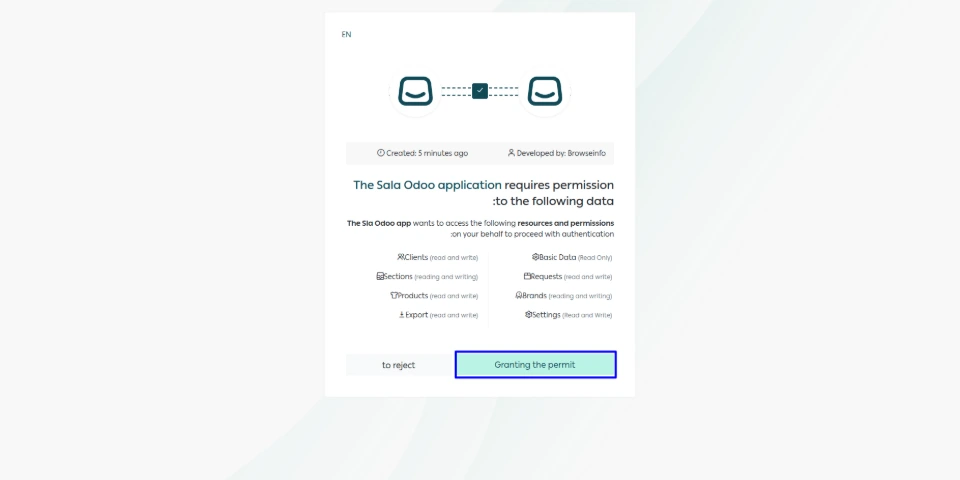
After logging in, review the requested permissions for the Salla Odoo integration. Click “Granting the permit” to authorize the requested access and complete the Salla app authorization process.
Salla Connection Successfully Authorized
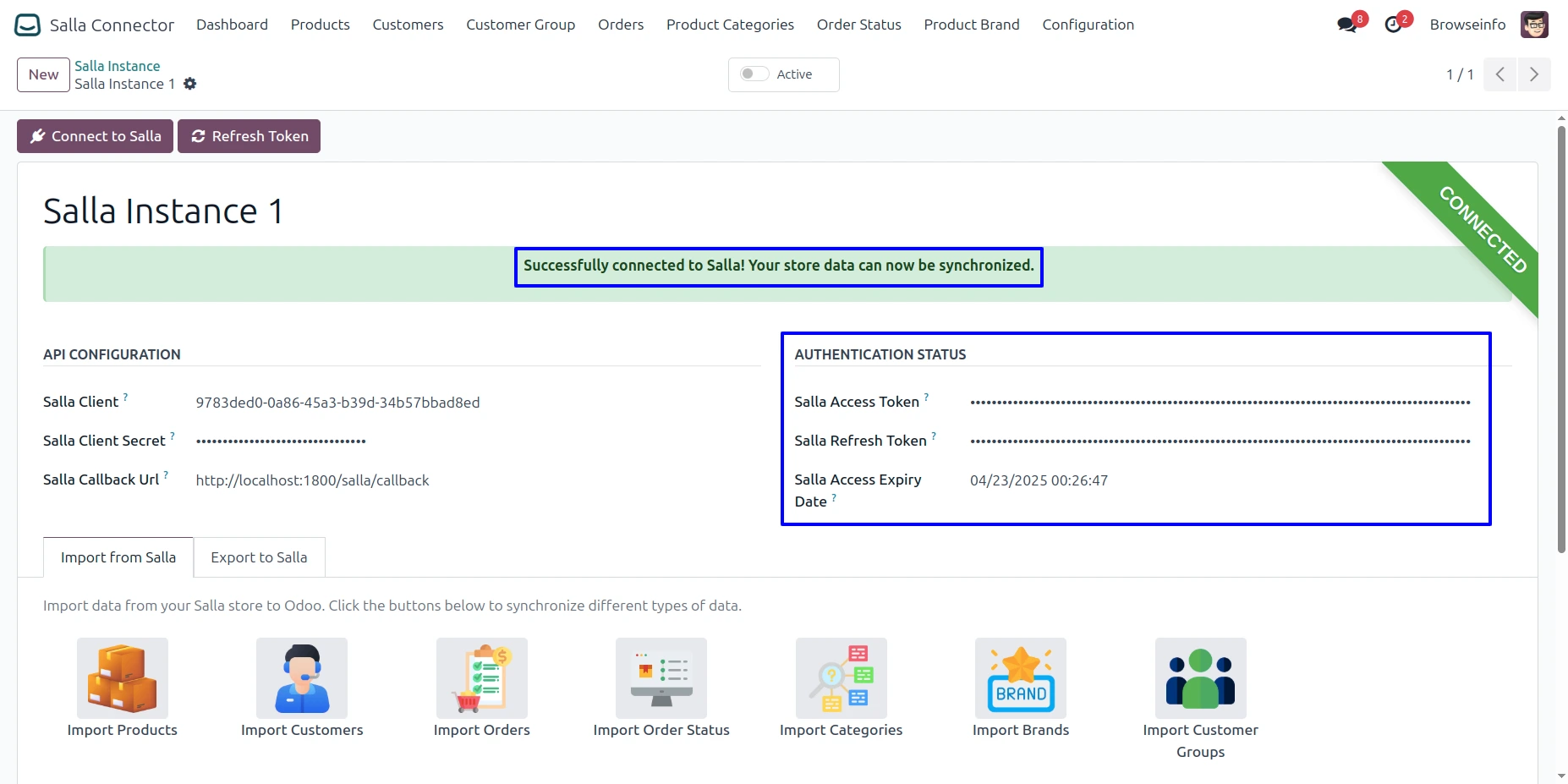
After granting access, you will be redirected back to the Salla Instance in Odoo. The system will automatically display the generated Access Token, Refresh Token, and Token Expiry Date, confirming that the Salla account has been successfully authorized and connected.
Refresh Salla Token After Expiry
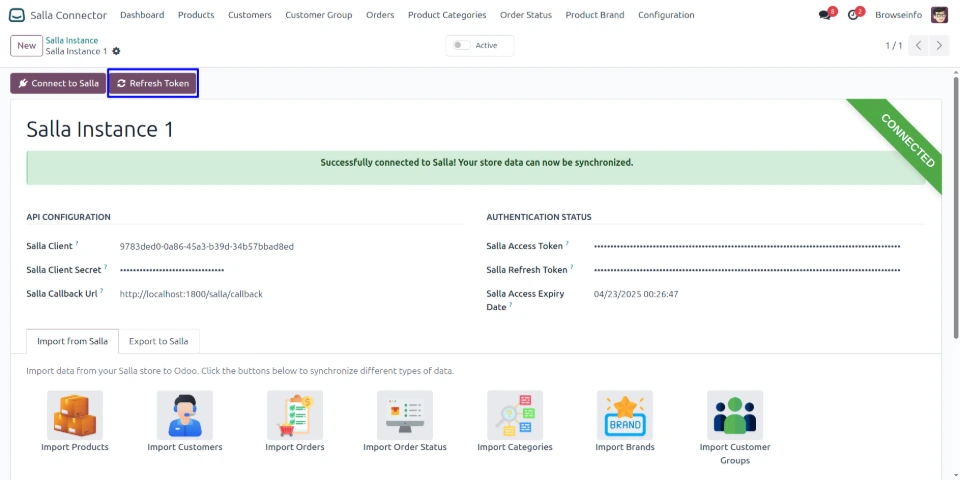
When the Salla access token expires, click the “Refresh Token” button to generate a new access token. This keeps the Salla store connection active and allows synchronization between Salla and Odoo to continue without interruption.
Activate Salla Instance
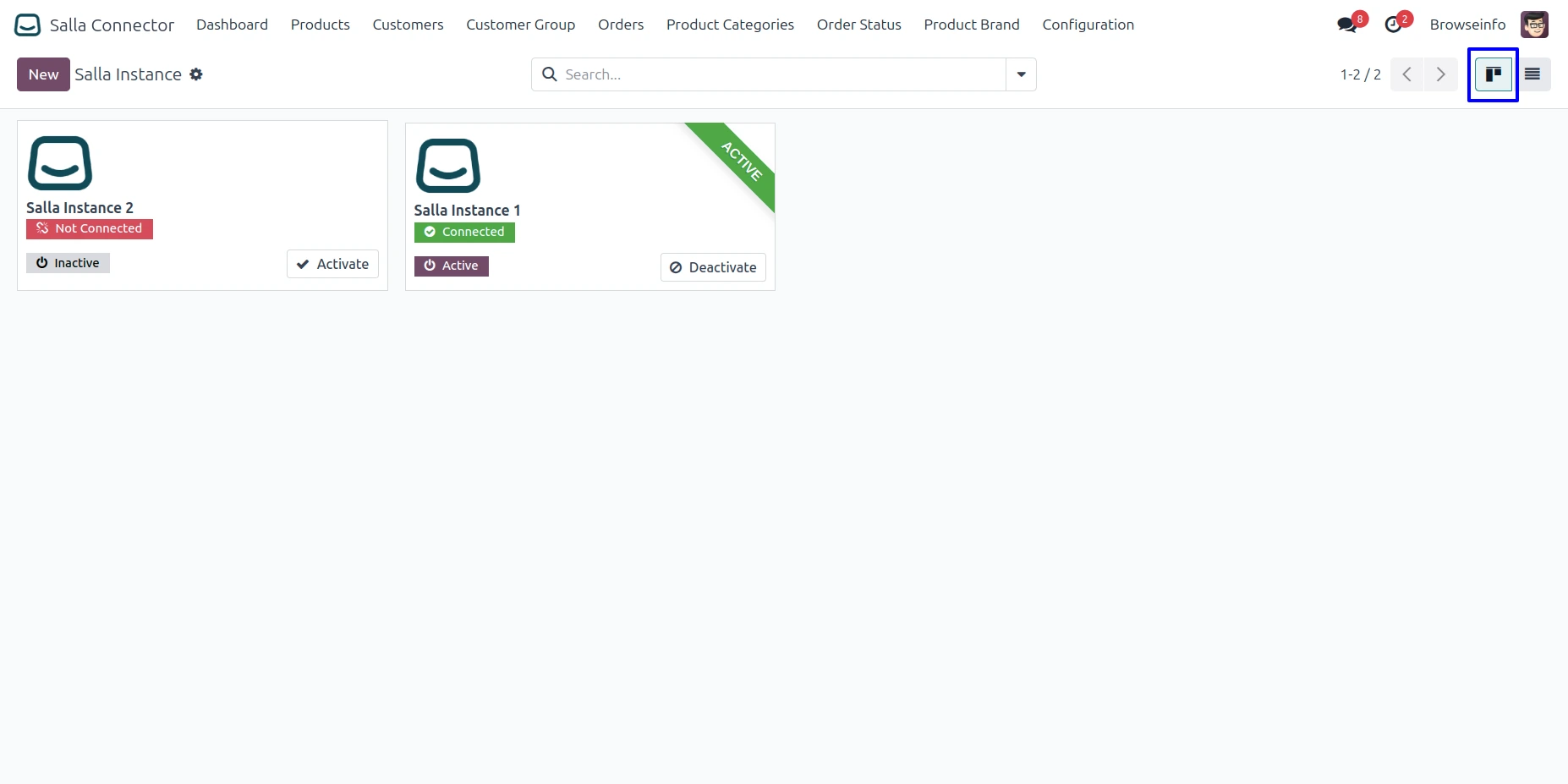
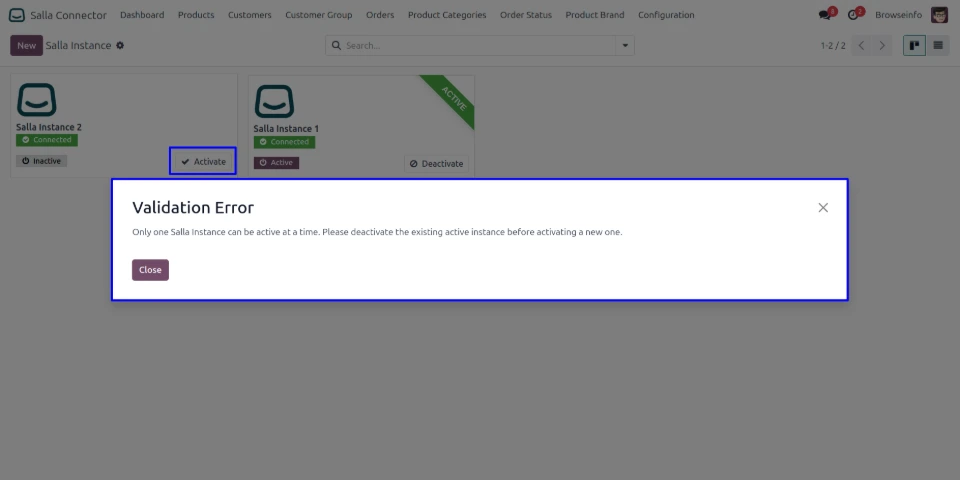
Users must enable the Active toggle on the Salla instance before performing import or export operations. This ensures the instance is active and helps prevent validation errors during synchronization.
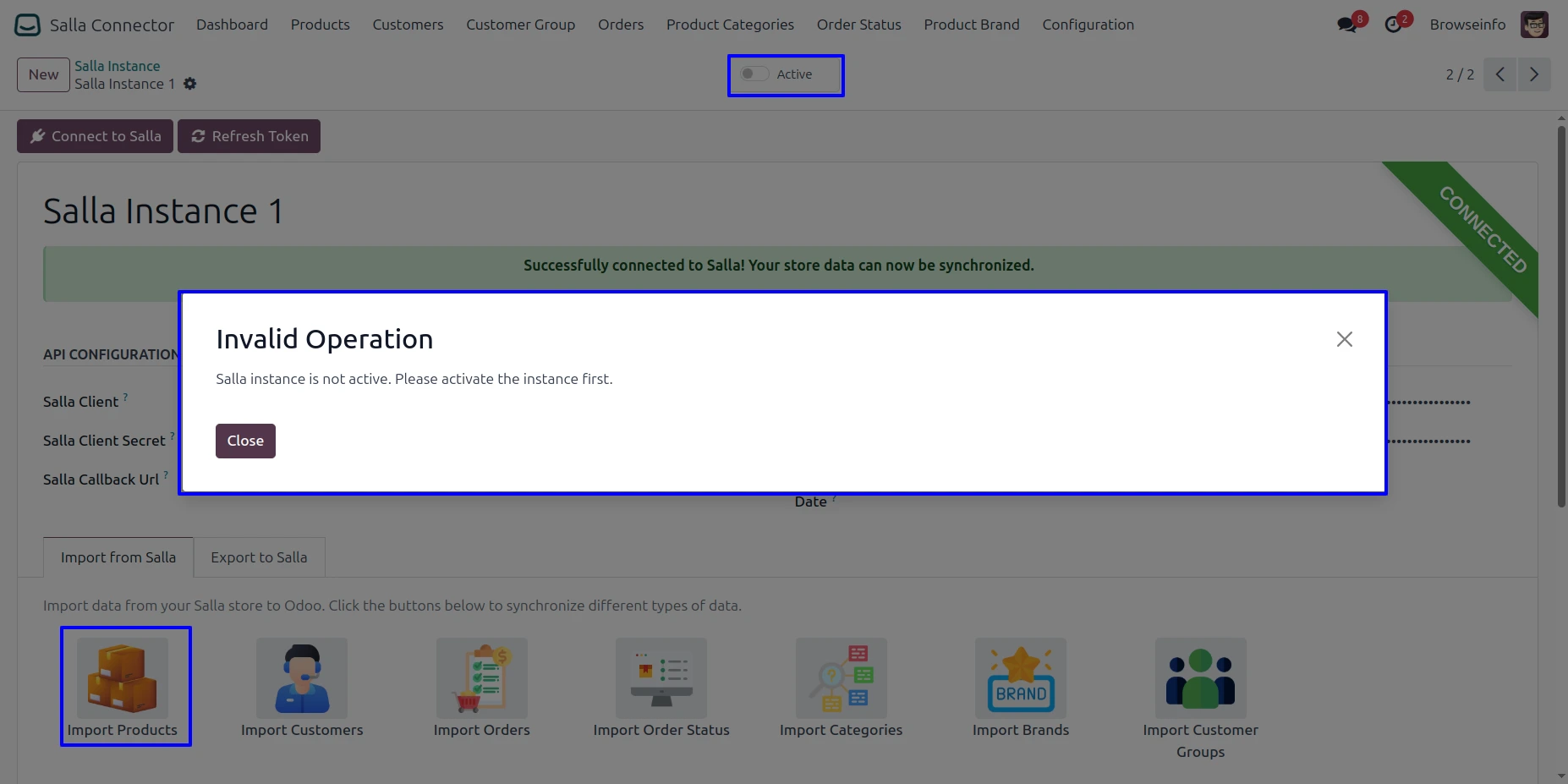
Import Records Page
Users can access the Import Records page from the Salla instance to import data from Salla into Odoo. From this page, users can select the required record type and initiate the corresponding import operation.
Import Products from Salla
Users can click the Import Products option to fetch and synchronize products from their Salla store into Odoo. This creates the corresponding product records in Odoo for further management and synchronization.

Imported Products Log History
After a successful product import, the system displays a success message with the import timestamp and the number of products and variants imported. This provides a record of the completed product synchronization from Salla to Odoo.
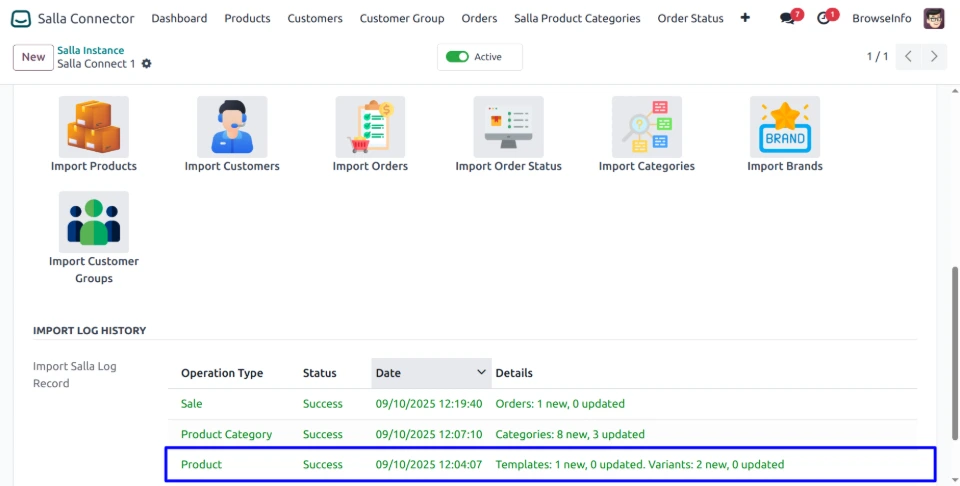
Imported Products Log Details
Users can view detailed import logs for each synchronized product, including the Salla Product ID and its verification status. This helps users verify individual product records after importing them into Odoo.
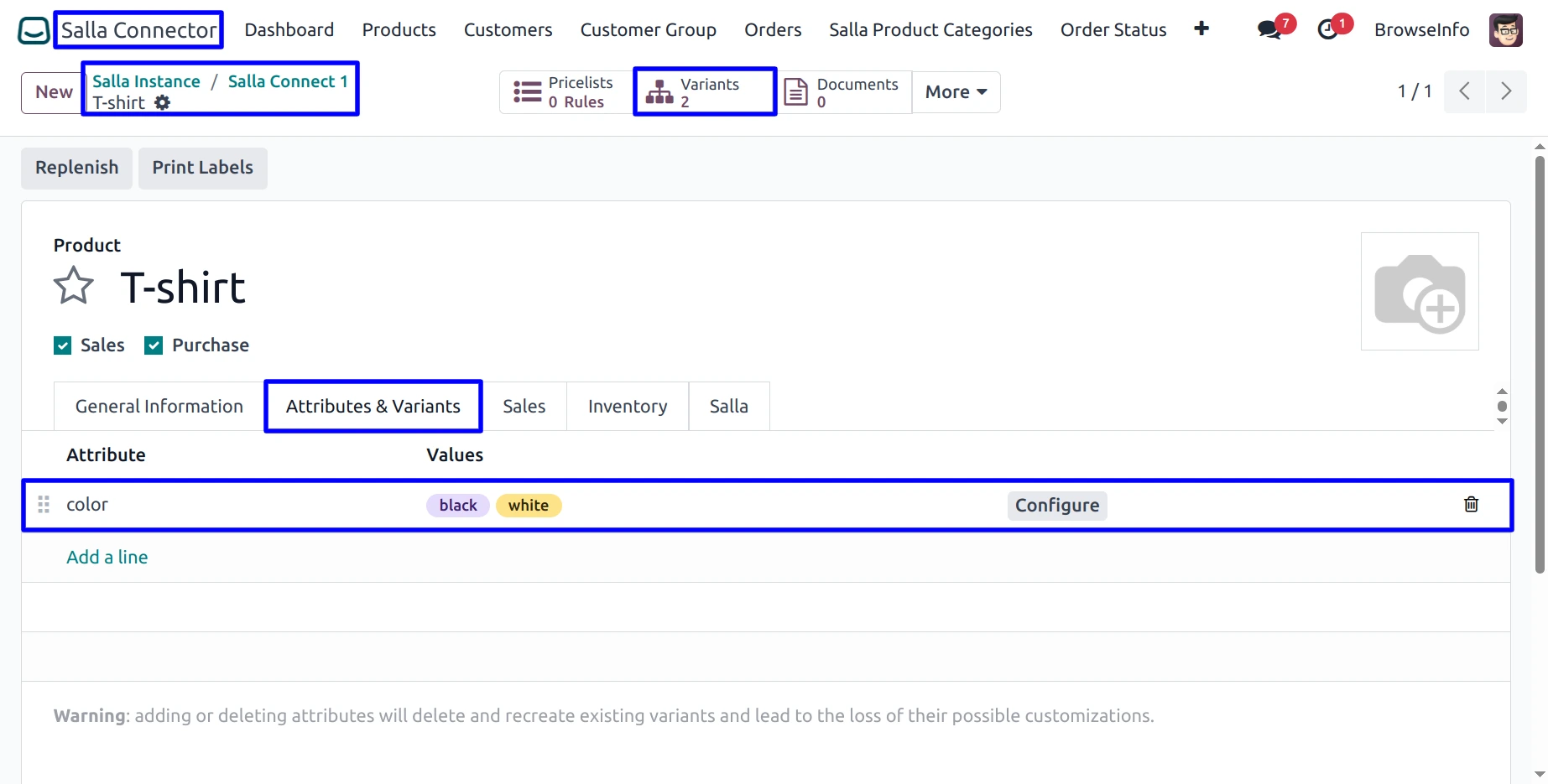
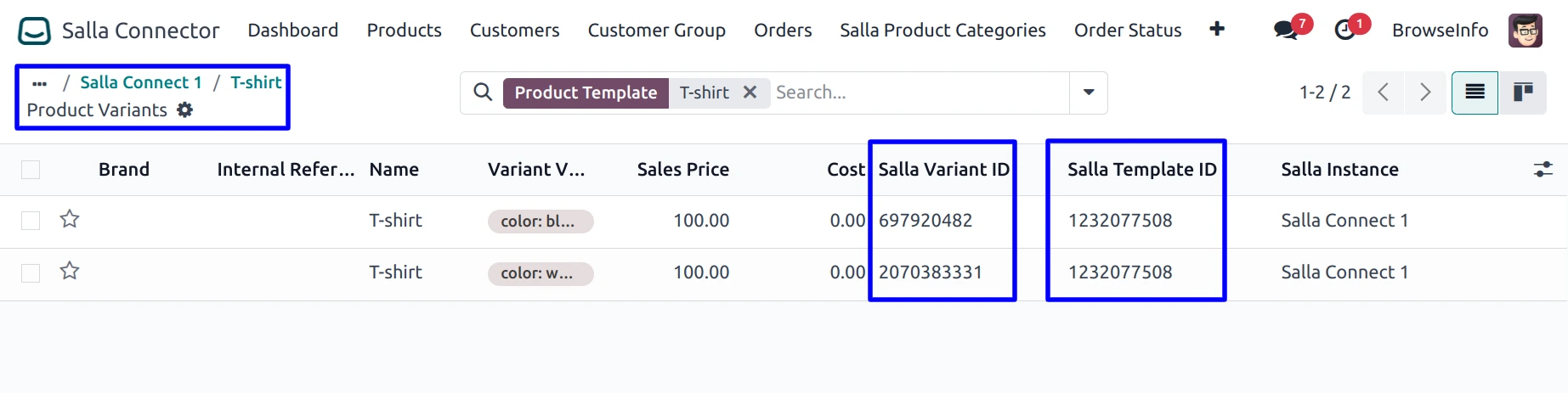
Salla Product Variant Details
Users can view the created product variants in Odoo along with their corresponding Salla Variant ID and Salla Template ID. These identifiers help maintain the connection between Odoo product variants and their records in Salla.
Import Customers from Salla
Users can click the Import Customers option to fetch and synchronize customer records from their Salla store into Odoo. The imported customers are created in Odoo and can be used for managing related eCommerce orders and customer information.

Imported Customers Log History
After a successful customer import, the system displays a success message with the import timestamp and the number of customers imported. This provides a clear record of the completed customer synchronization from Salla to Odoo.
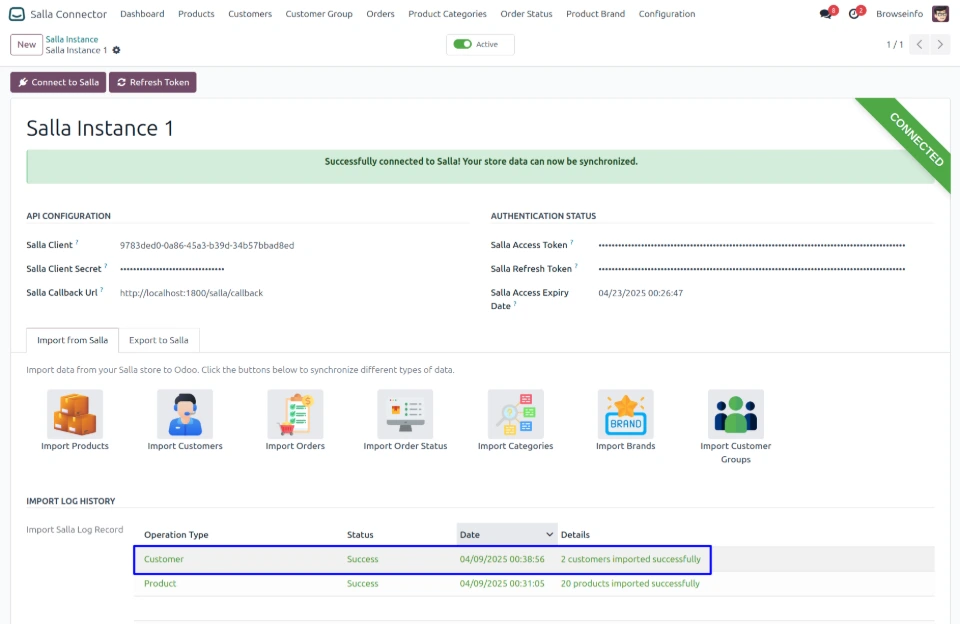
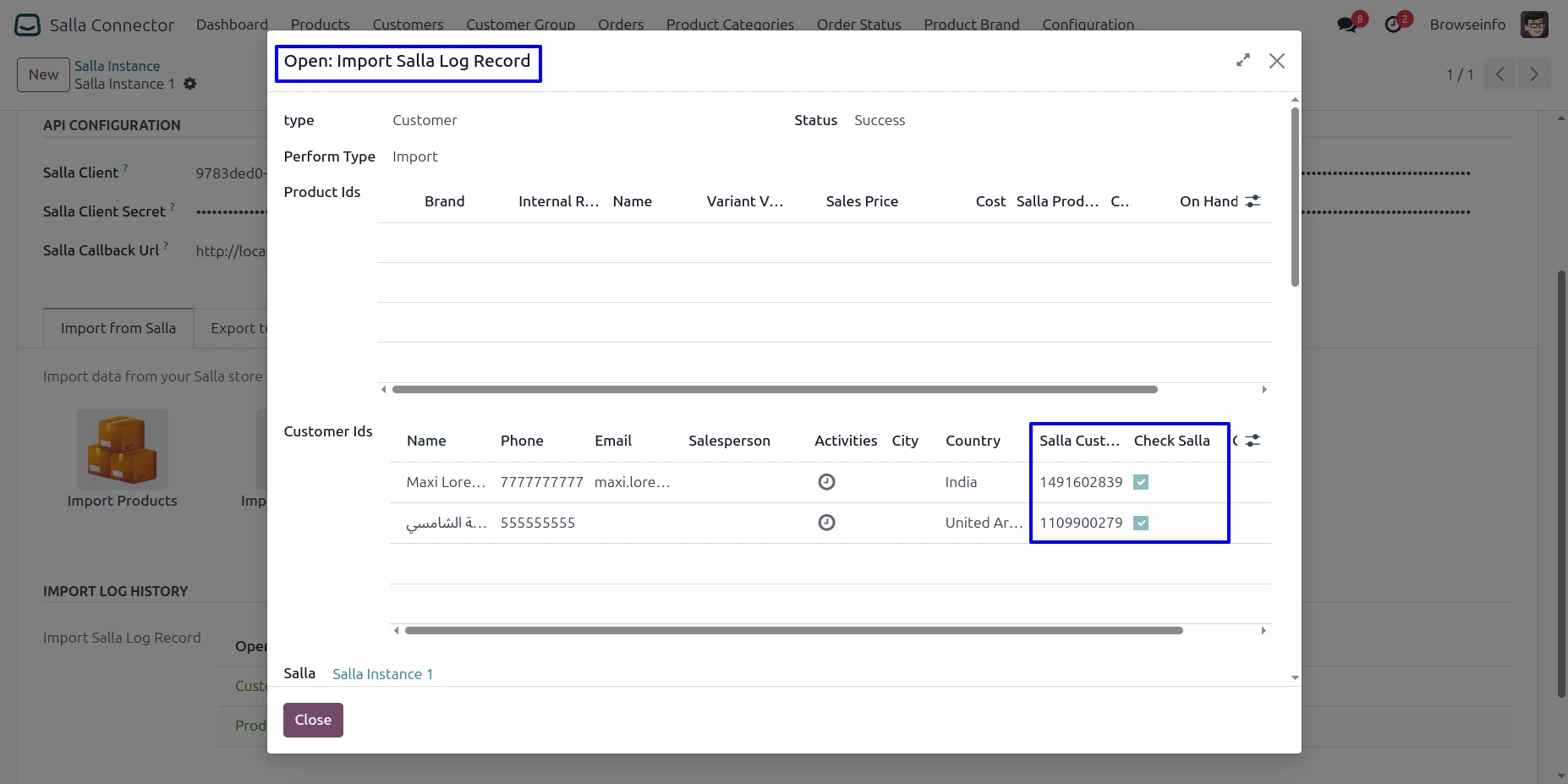
Imported Customers Log Details
Users can view a detailed import log for each synchronized customer, including the Salla Customer ID and verification status. This helps verify individual customer records imported from Salla into Odoo.
Import Orders from Salla
Users can click the Import Orders option to fetch and synchronize orders from their connected Salla store into Odoo. The system imports the order details and creates corresponding records in Odoo, making them available for further processing and management.

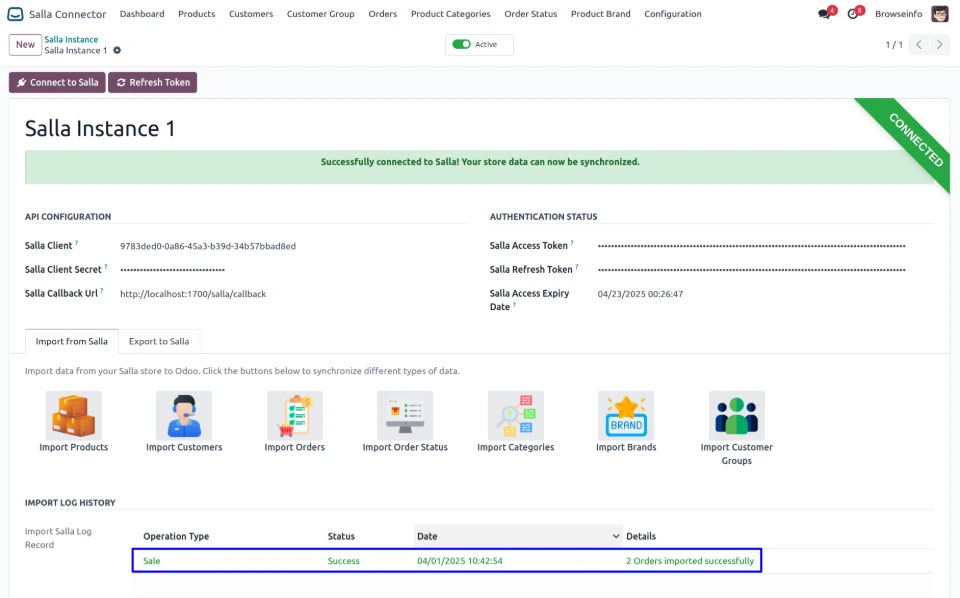
Imported Orders Log History
After a successful order import, the system displays a success message with the import timestamp and the number of orders imported. This provides a clear record of the completed order synchronization from Salla to Odoo.
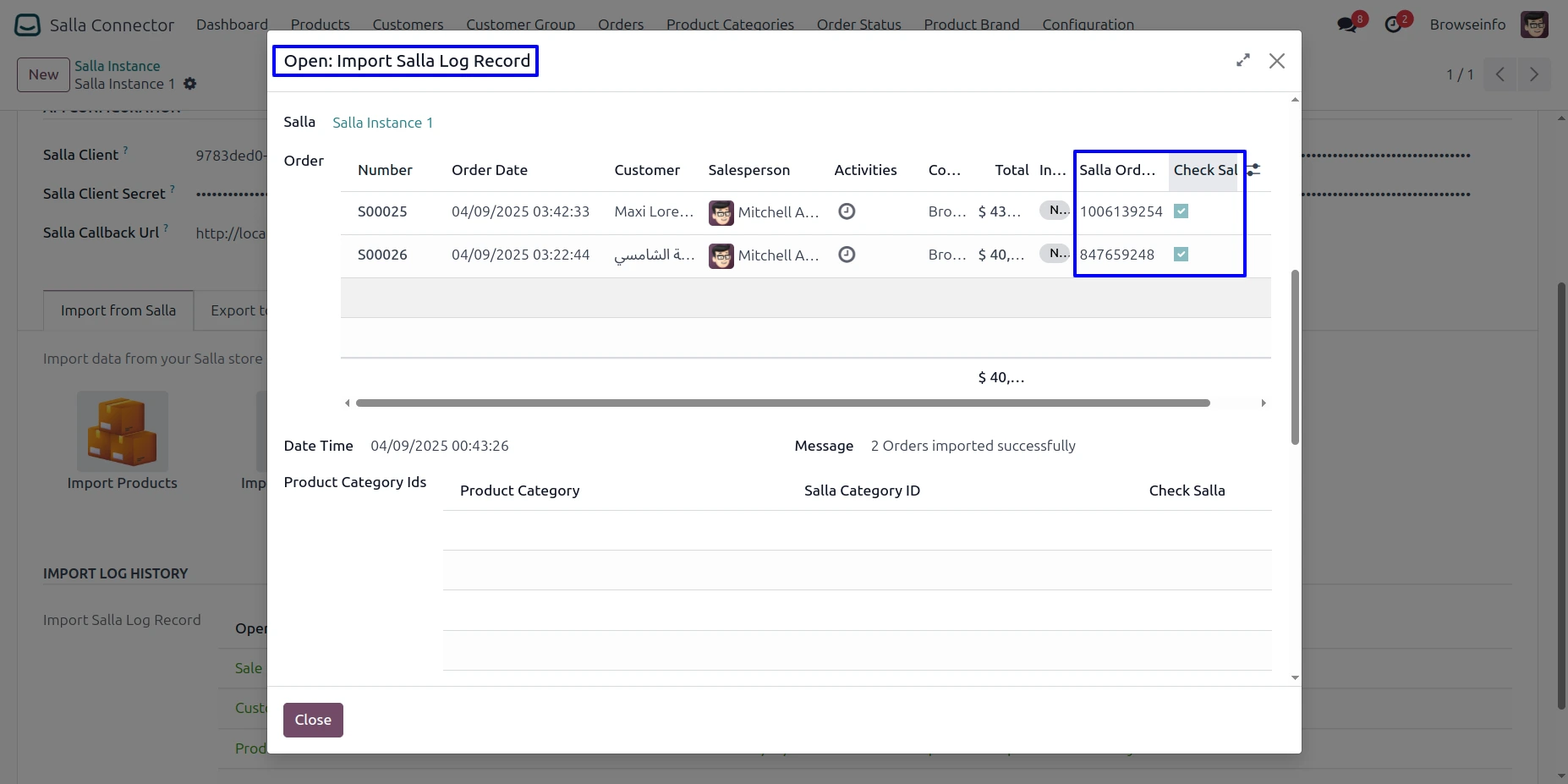
Imported Orders Log Details
Users can view a detailed import log for each synchronized order, including the Salla Order ID and verification status. This allows users to verify individual order records imported from Salla into Odoo.
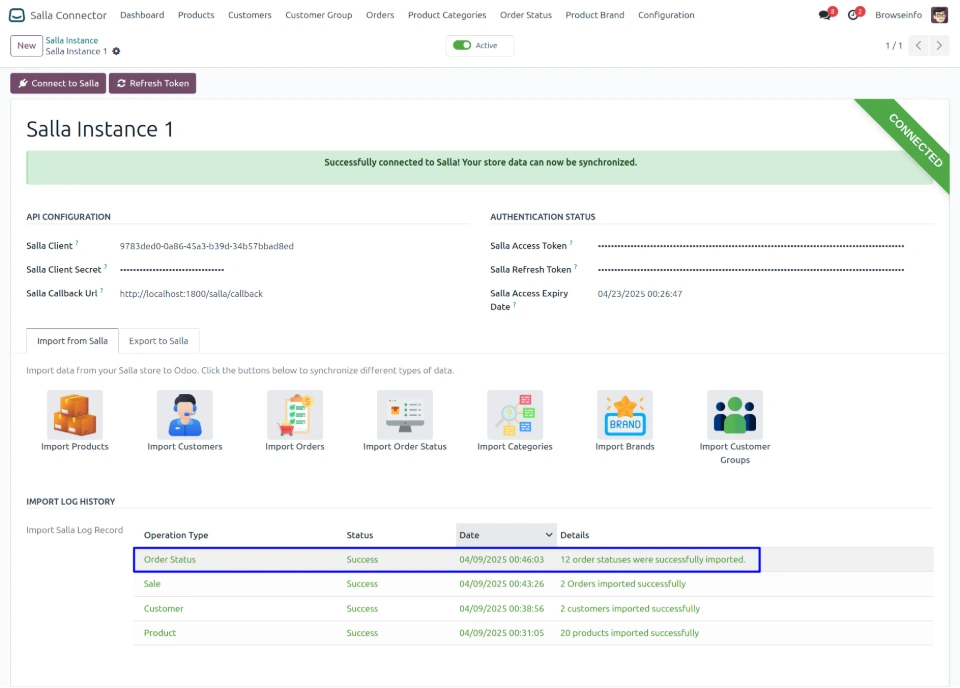
Imported Order Status Log History
After successfully importing order statuses from Salla, the system records the synchronization in the Import Log History. The log displays the operation type, success status, import timestamp, and the number of order statuses imported, providing a clear record of the completed synchronization.
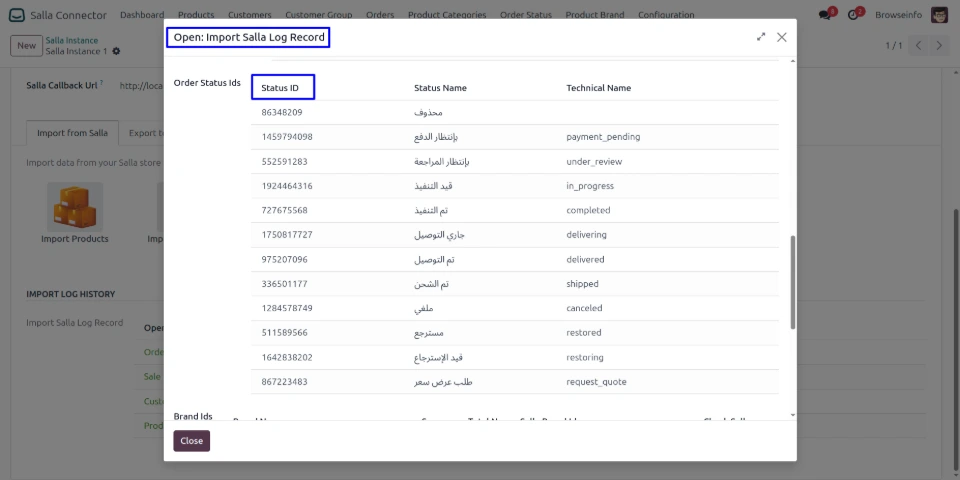
Imported Order Status Log Details
Users can view a detailed log of each imported order status, including the Order Status ID, Status Name, and Technical Name. This provides a clear record of the order statuses synchronized from Salla and helps verify the imported status information in Odoo.
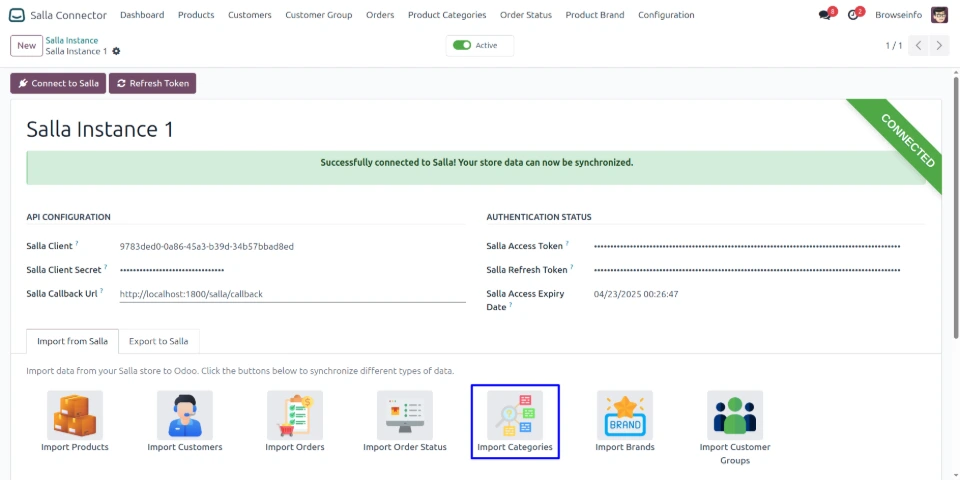
Import Product Categories from Salla
Users can click the Import Categories option to fetch and synchronize all product categories from their connected Salla store into Odoo. The imported categories are created in Odoo and can then be used to organize and manage synchronized products.
Imported Order Status Log Details
Users can view a detailed log of each imported order status, including the Order Status ID, Status Name, and Technical Name. This provides a clear overview of the order statuses synchronized from Salla and helps users verify the imported status records in Odoo.
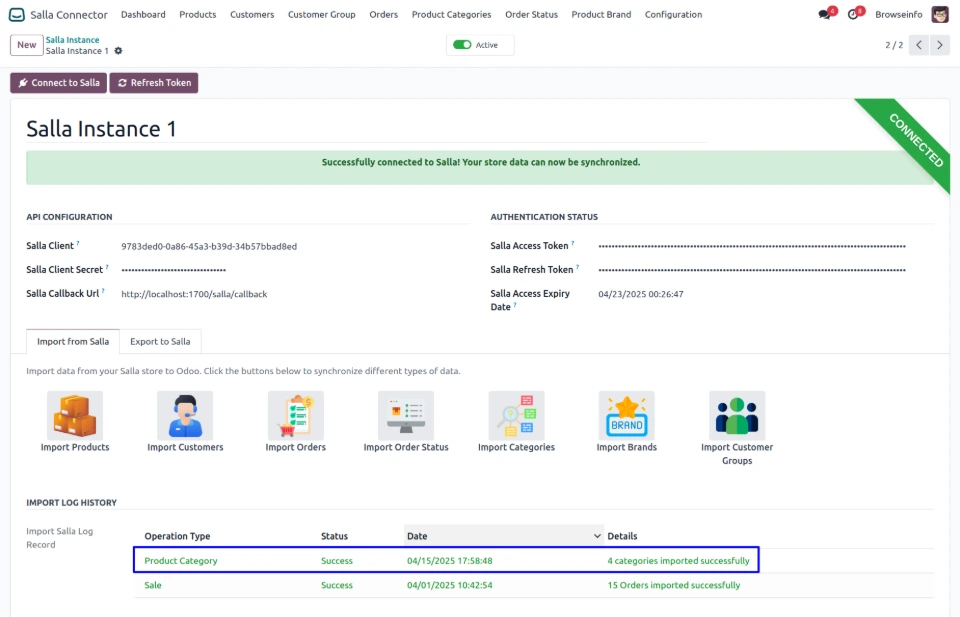
Imported Product Categories Log History
After successfully importing product categories from Salla, the system displays a success message in the Import Log History with the import timestamp and the number of product categories imported. This provides a clear record of the completed category synchronization from Salla to Odoo.
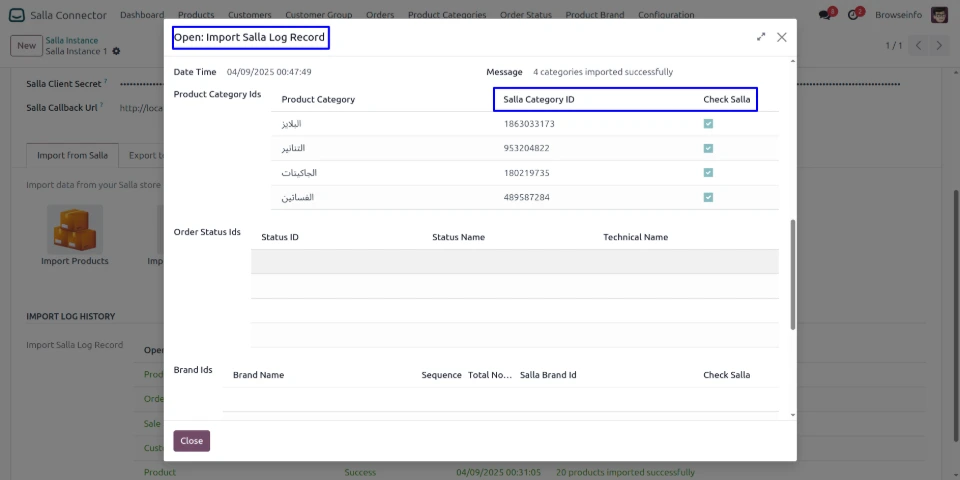
Imported Product Categories Log Details
Users can view a detailed import log for each synchronized product category, including the Product Category, Salla Category ID, and verification status. This allows users to verify each category imported from Salla and confirm that the corresponding records were successfully synchronized with Odoo.
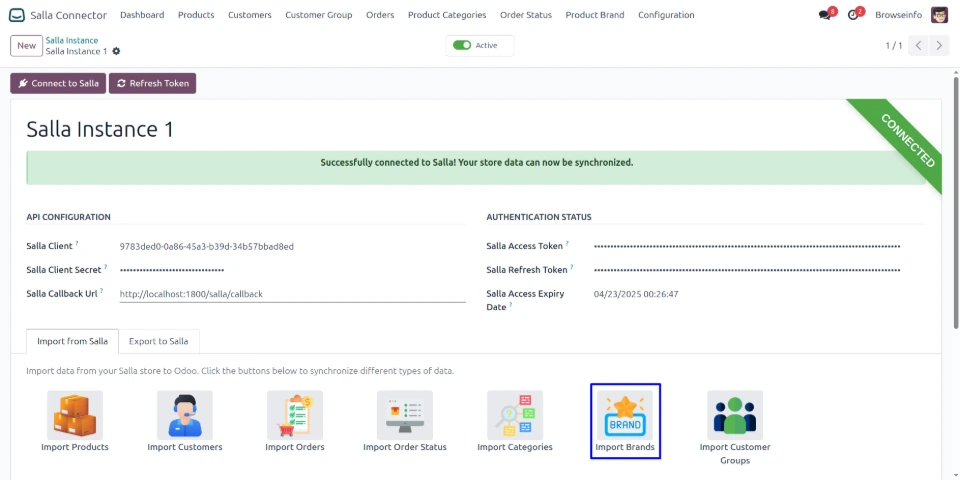
Import Brands from Salla
Click Import Brands to fetch and synchronize all brands from your Salla store into Odoo. The imported brands can then be managed and used within Odoo for product and eCommerce operations.
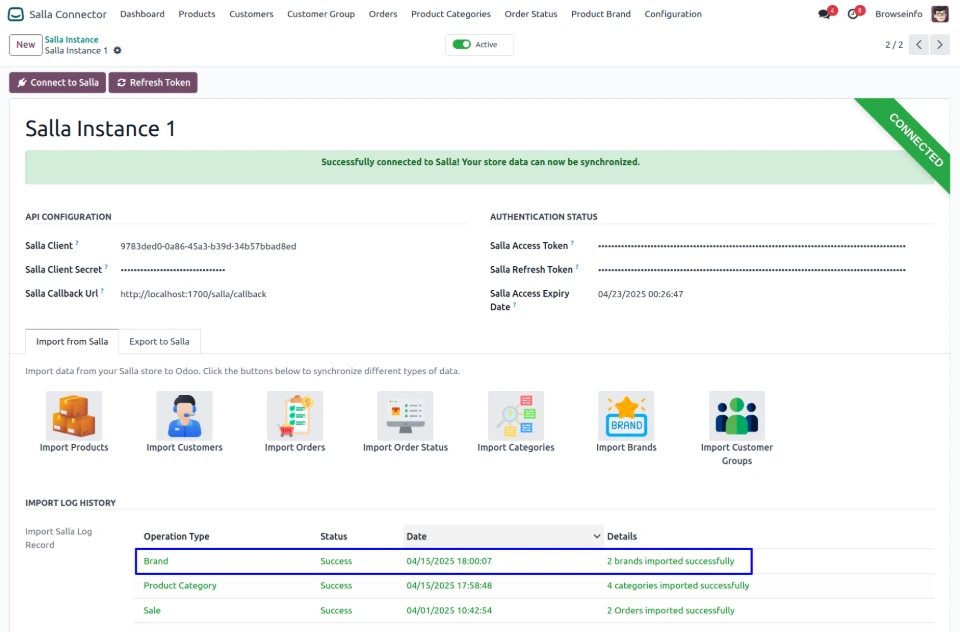
Imported Brand Log History
After a successful brand import, the system displays a success message along with the import timestamp and the number of brands imported. This provides a clear history of completed brand synchronization from Salla to Odoo.
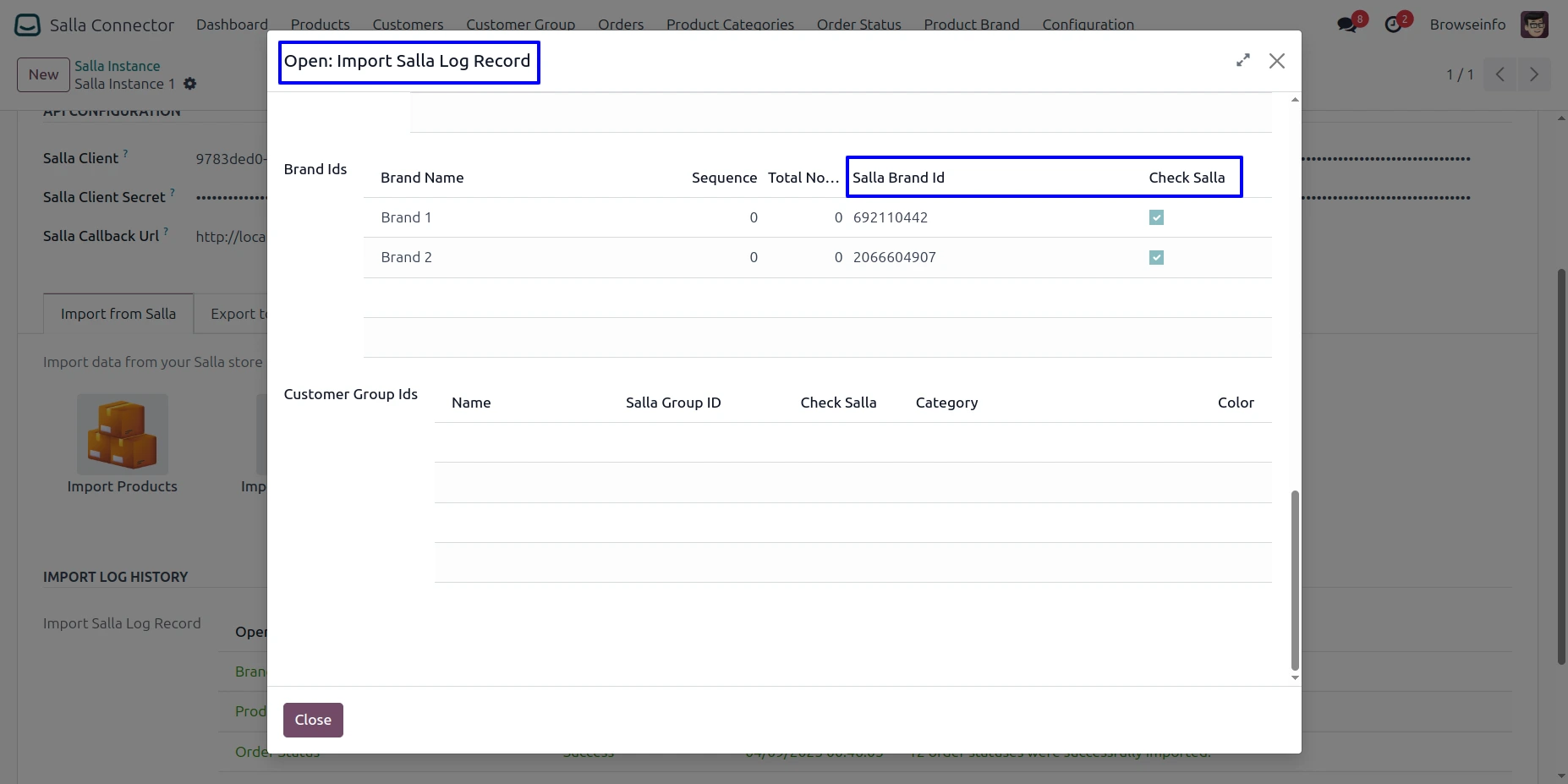
Imported Brand Details Log
The detailed import log view displays each imported brand record along with its Brand Name, Salla Brand ID, and verification status. Users can verify whether each imported brand is successfully matched with the corresponding Salla record through the Check Salla status indicator.
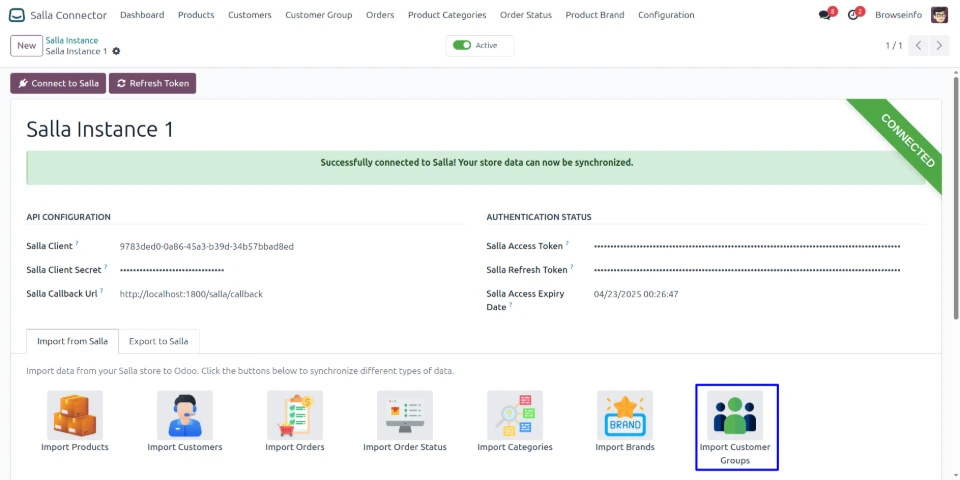
Import Customer Groups from Salla
Users can click the Import Customer Groups option to fetch and synchronize all customer groups from their Salla store into Odoo. The imported customer groups are created in Odoo and can be used for managing customer segmentation and related eCommerce workflows.
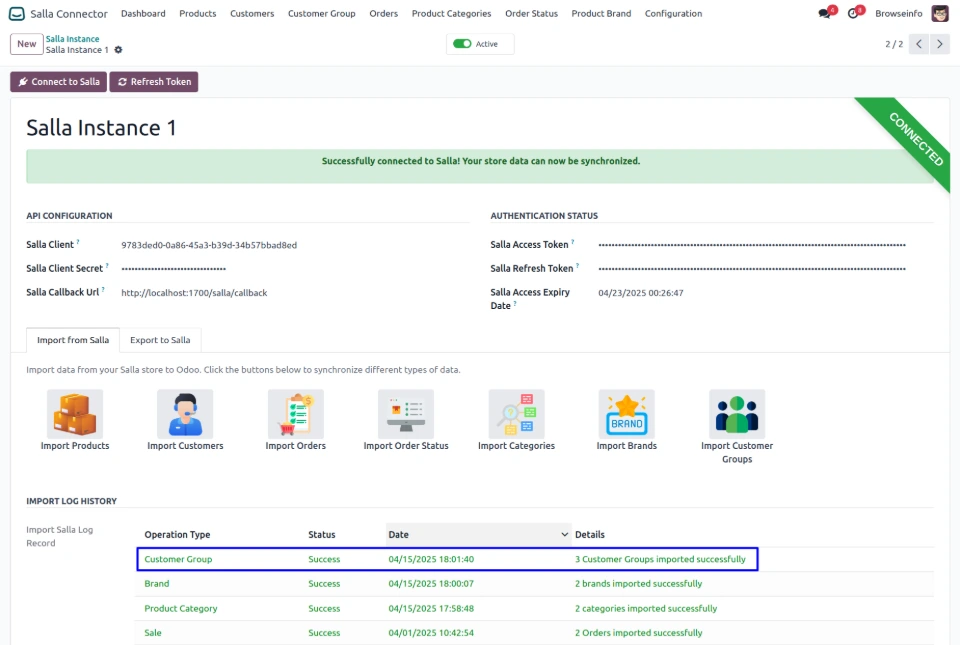
Imported Customer Groups Log History
After a successful customer group import, the system displays a success message with the import timestamp and the number of customer groups imported. This provides a clear record of completed customer group synchronization from Salla to Odoo.
The detailed import log view displays each imported customer group along with its Group Name, Salla Group ID, and verification status. Users can verify whether each customer group is successfully synchronized with the corresponding Salla record through the Check Salla status indicator.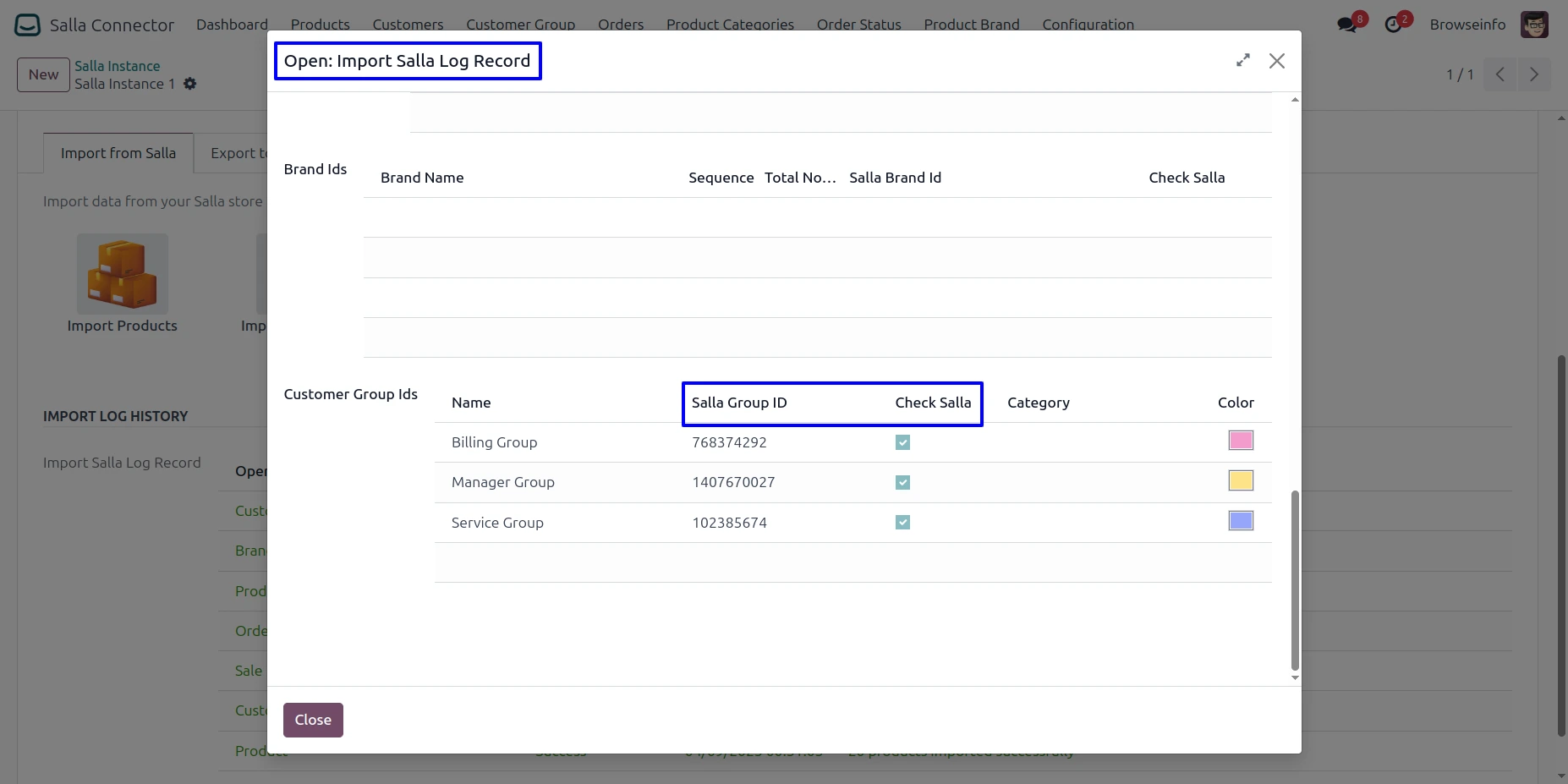
Export Records Page
The Export Records page allows users to synchronize data from Odoo to their Salla store. Users can select different export options to transfer products, customers, orders, order statuses, categories, brands, and customer groups from Odoo to Salla.
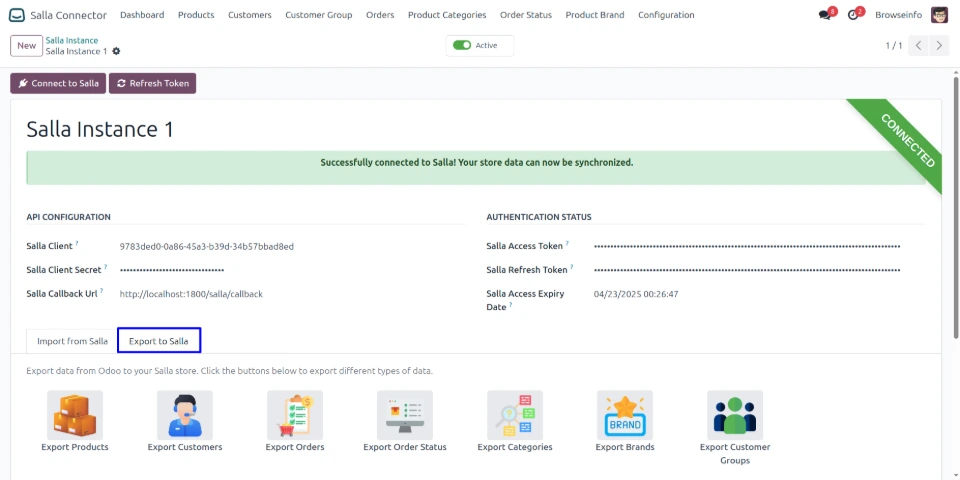
Export Products to Salla
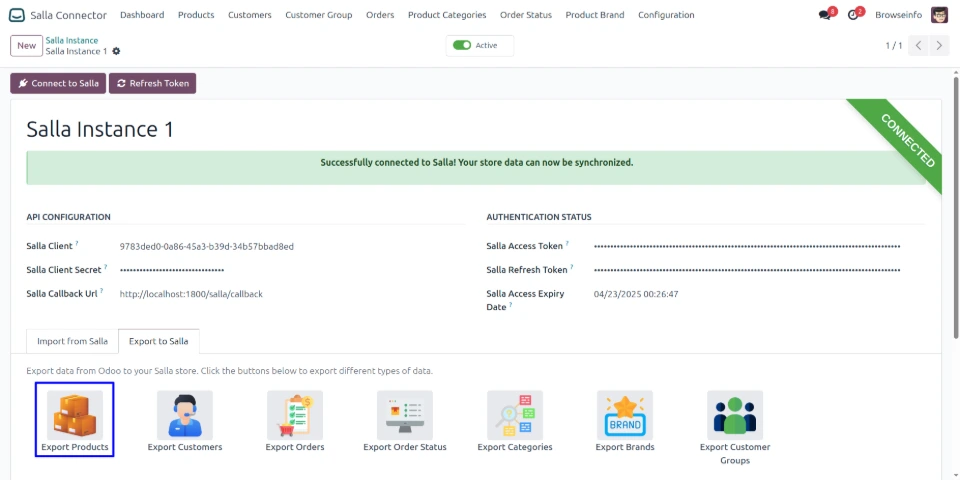
Users can click the Export Products option to export product data from Odoo to their Salla store. The system synchronizes product information and creates or updates the corresponding products in Salla for seamless eCommerce management.
Exported Products Log History
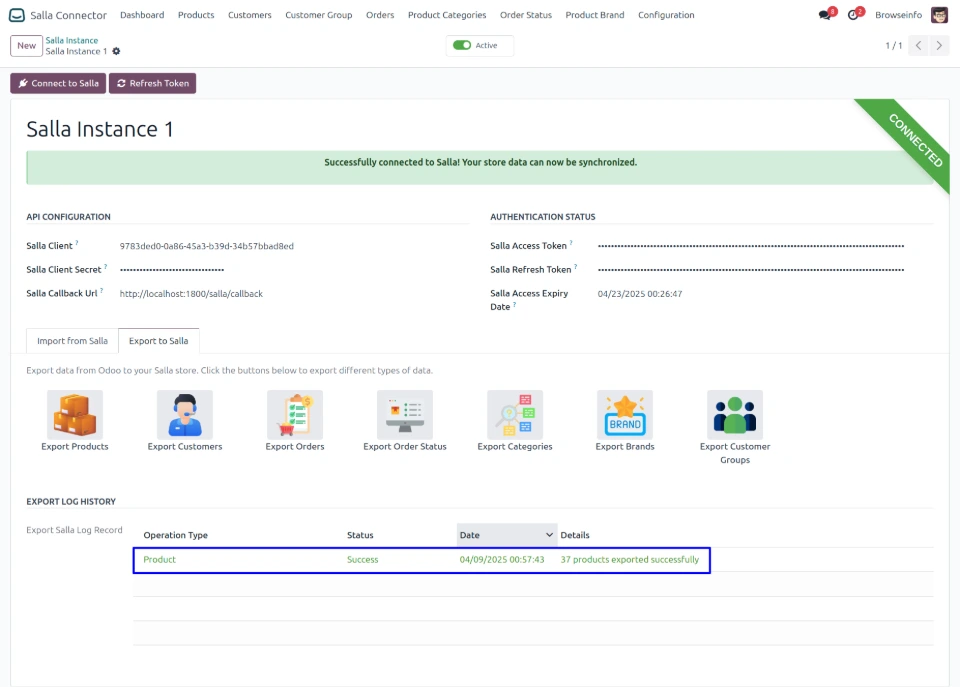
After a successful product export, the system displays a success message along with the export timestamp and the number of products exported. This provides a clear record of completed product synchronization from Odoo to Salla.
Exported Product Details Log
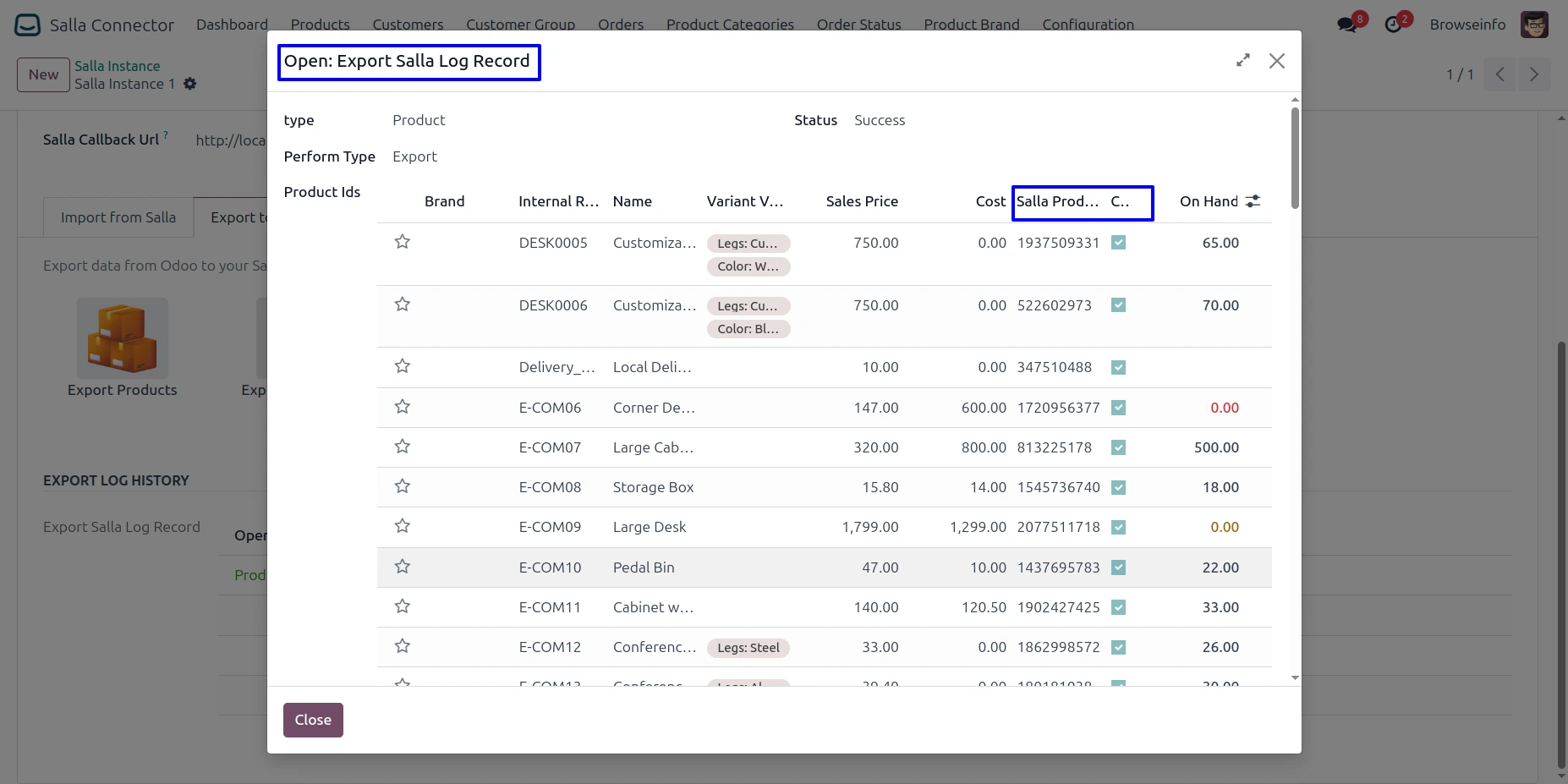
The detailed export log view displays each exported product record along with its Product Name, Internal Reference, Sales Price, Salla Product ID, and verification status. Users can verify whether each product is successfully synchronized with the corresponding Salla record through the Check Salla status indicator.
Exported Product Visible in Salla Store
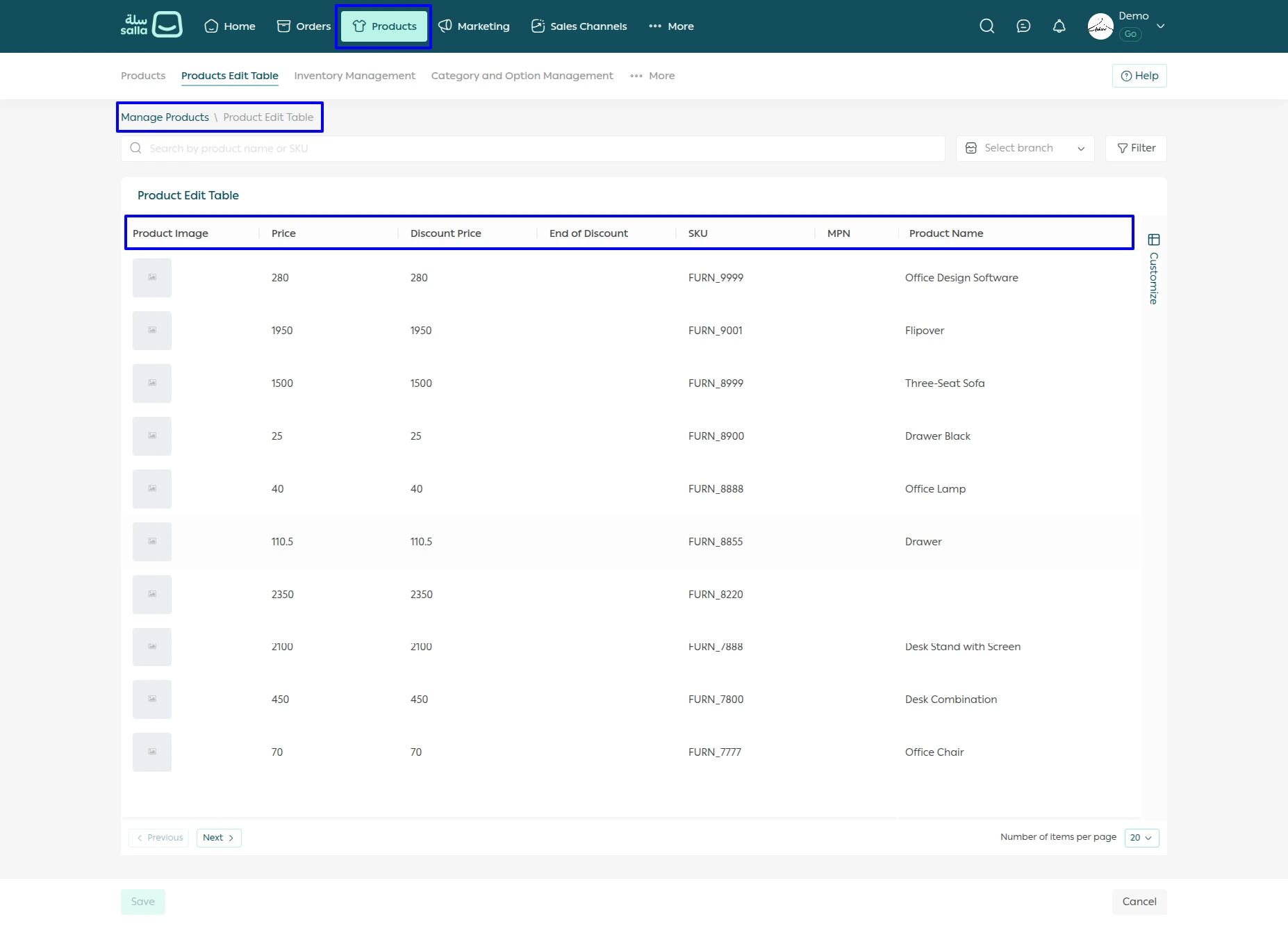
After successfully exporting products from Odoo to Salla, the synchronized products become available in the Salla store product management page. Users can view the exported product details, including product name, SKU, price, discount price, and other product information, directly within Salla.
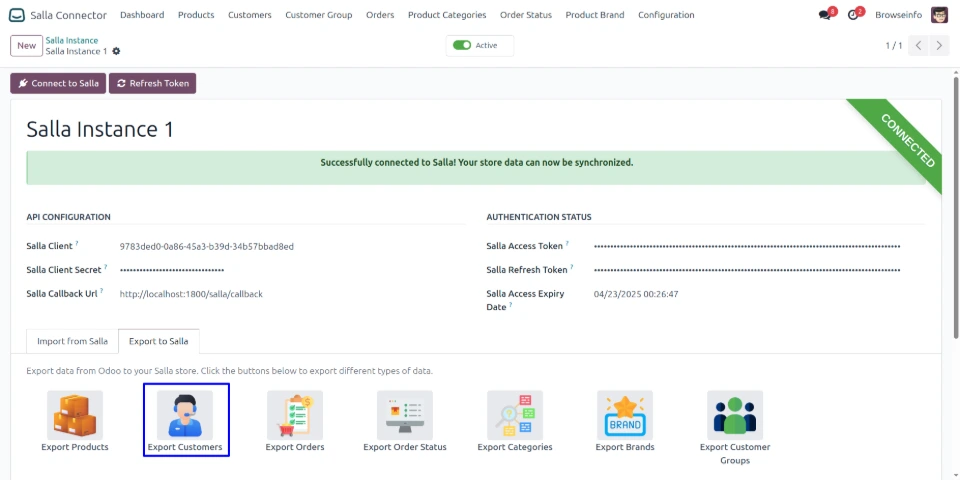
Export Customers to Salla
Users can click the Export Customers option to export customer data from Odoo to their Salla store. The system synchronizes customer information and creates or updates the corresponding customer records in Salla for seamless eCommerce customer management.
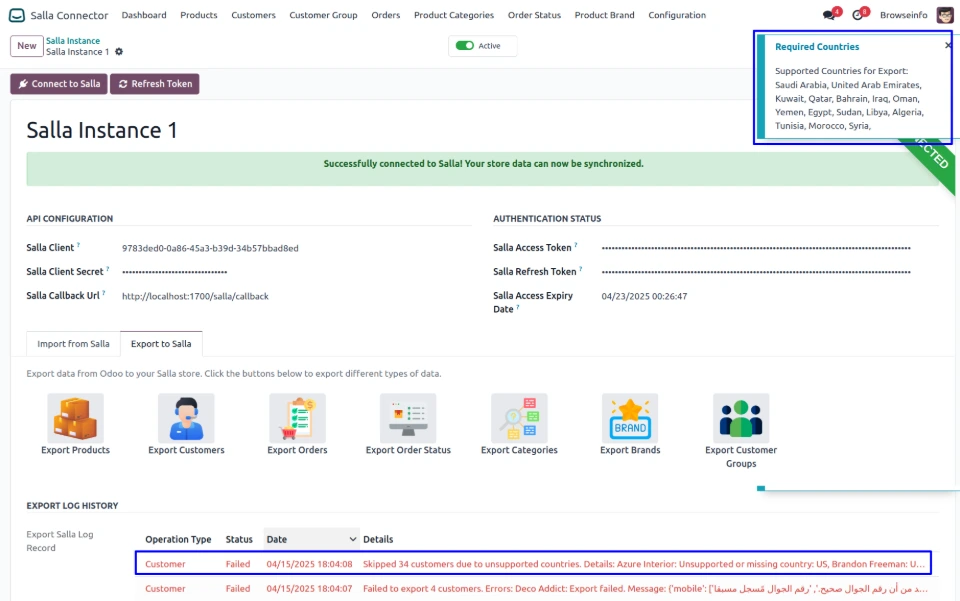
Required Countries For Export Customers
When exporting customers from Odoo to Salla, the system validates whether customer addresses contain supported countries required by Salla. If any customer has an unsupported or missing country, the export process is failed for those records.
The system displays a failure message with the export timestamp and the reason for the failed customer export, helping users identify and update customer country information before retrying the synchronization.
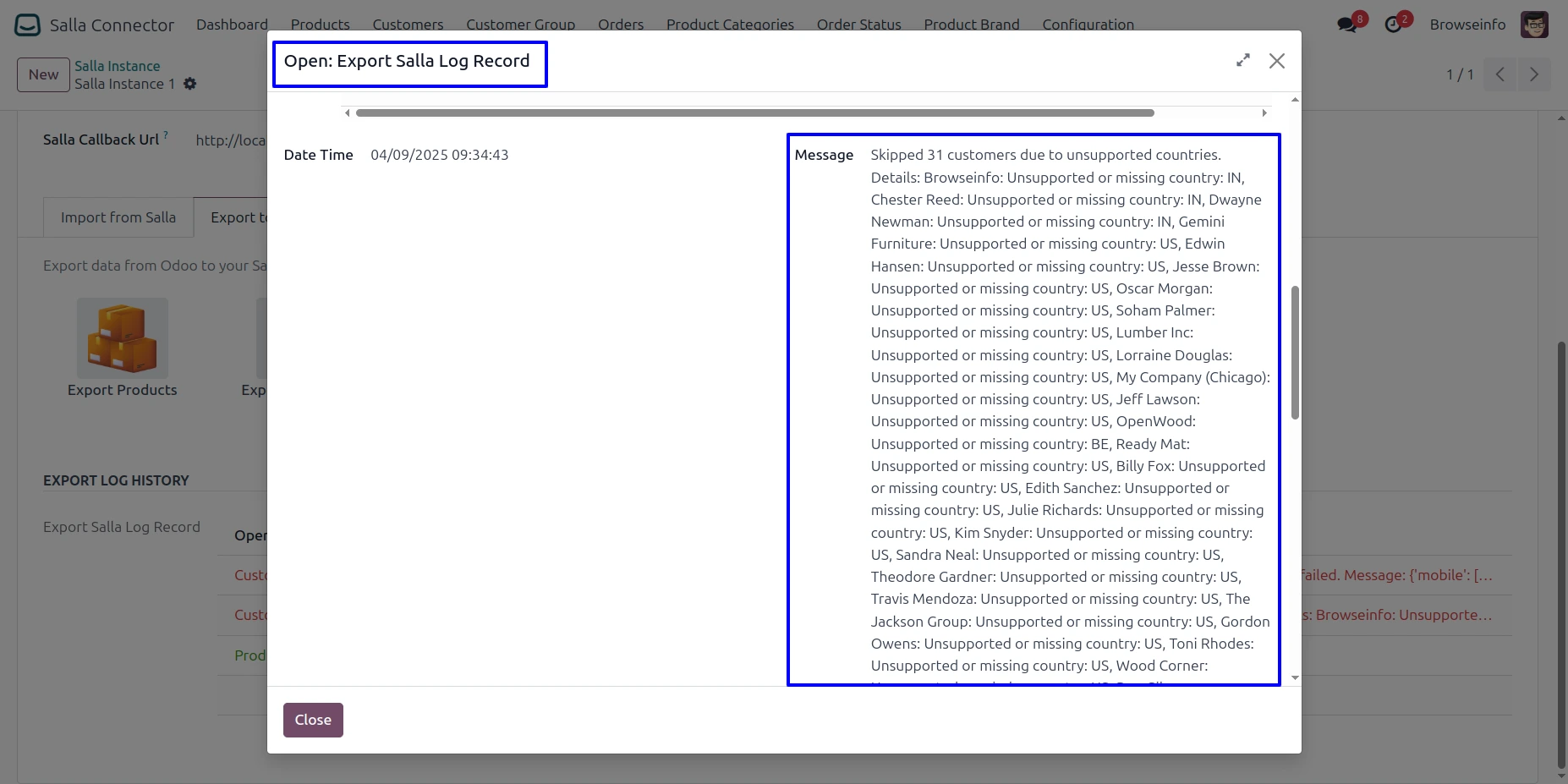
Export Customer Failure Details Log
The detailed export log view displays each customer record that was skipped during the export process along with the reason for failure. It provides information such as the customer name and the validation issue, for example unsupported or missing country details.
This helps users identify customers with incomplete or unsupported information, update the required details in Odoo, and retry the export process successfully.
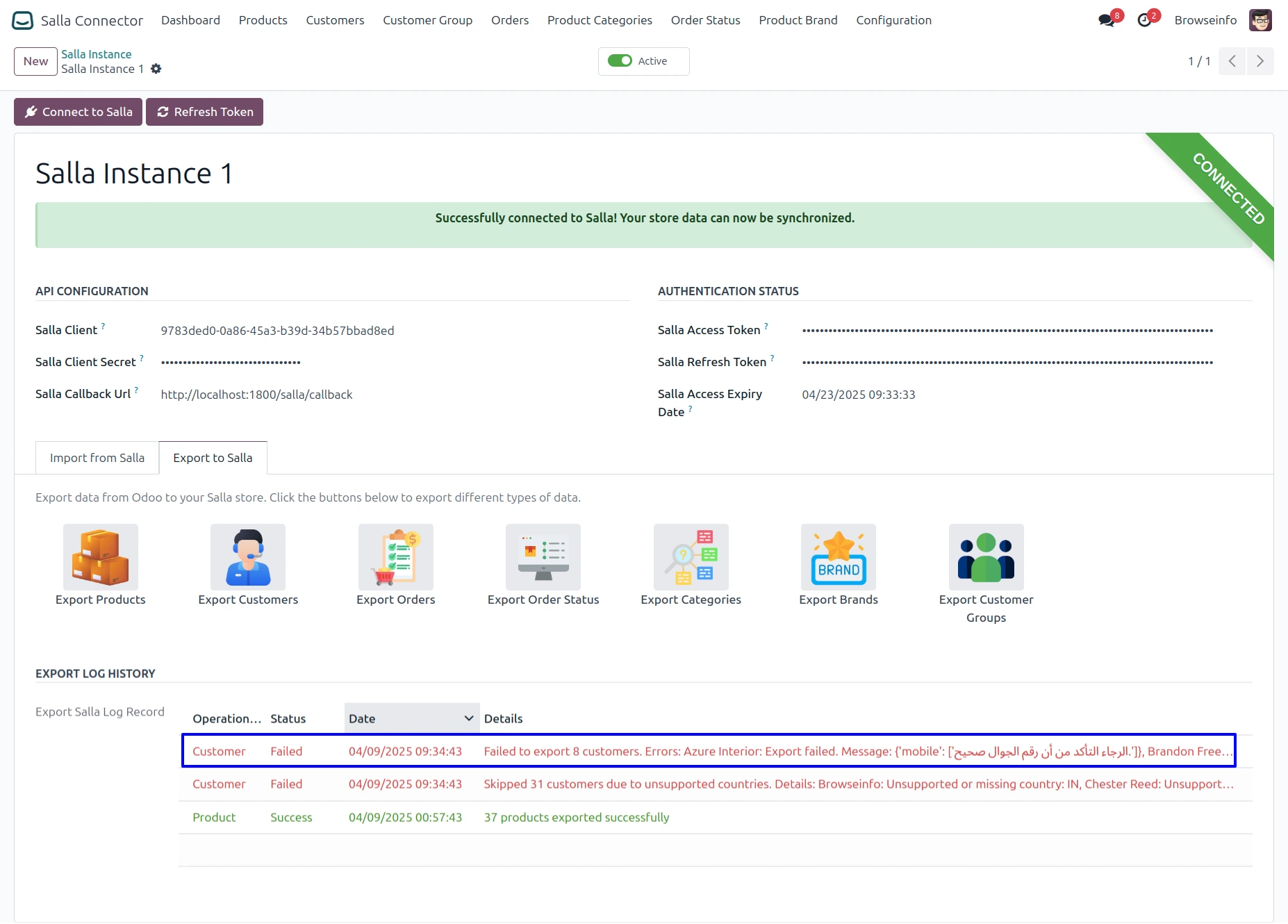
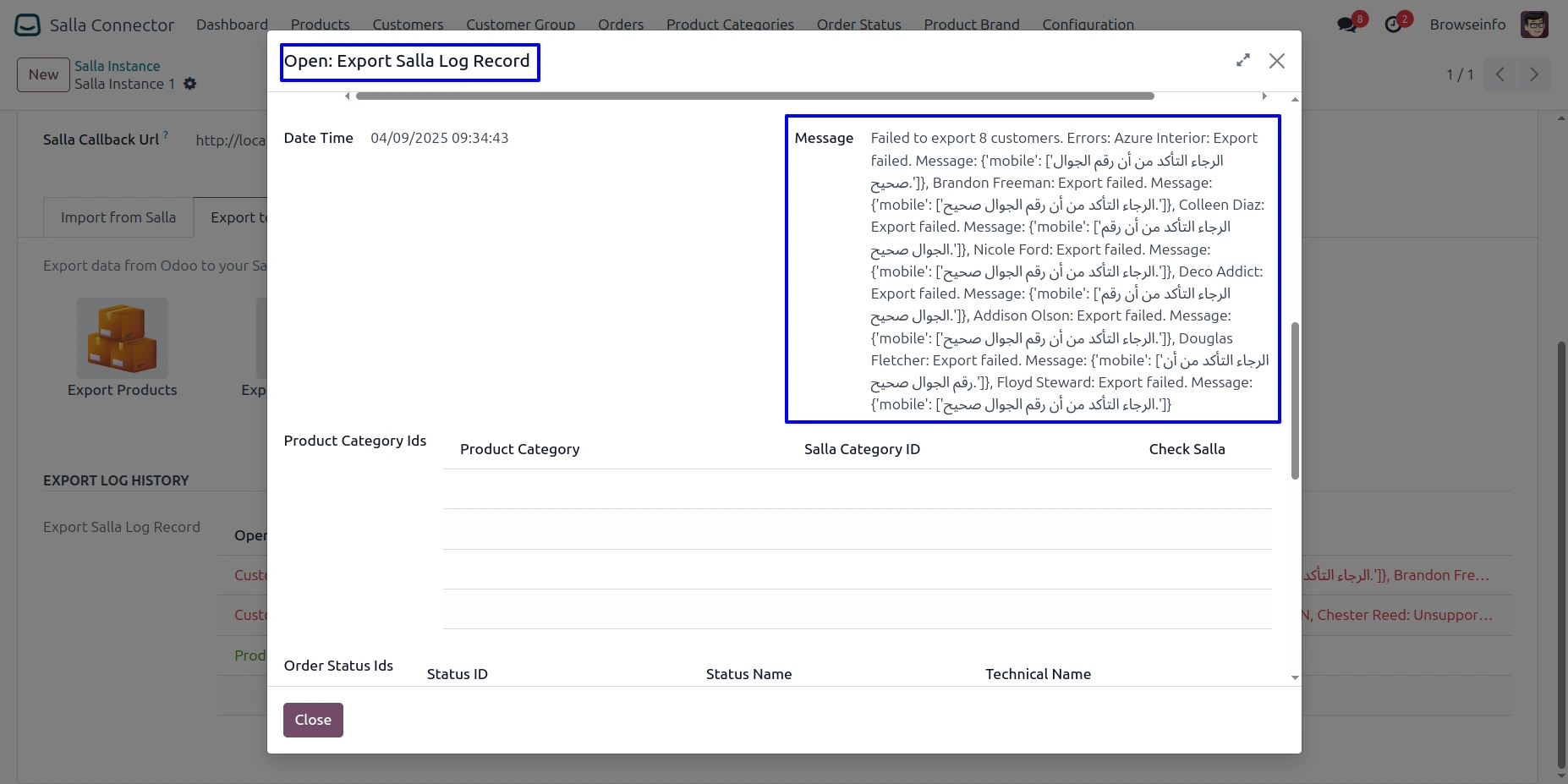
Export Customer Mobile Validation
If the customer has a valid country but an invalid mobile number format, the Odoo Salla Connector shows a failed export status in the log history with the timestamp and error details received from Salla.
Detailed Salla Export Log
Users can open the Salla Export Log Record to view detailed export results, including the affected customer, export status, and the error message returned by Salla. This helps identify and troubleshoot individual customer export failures.
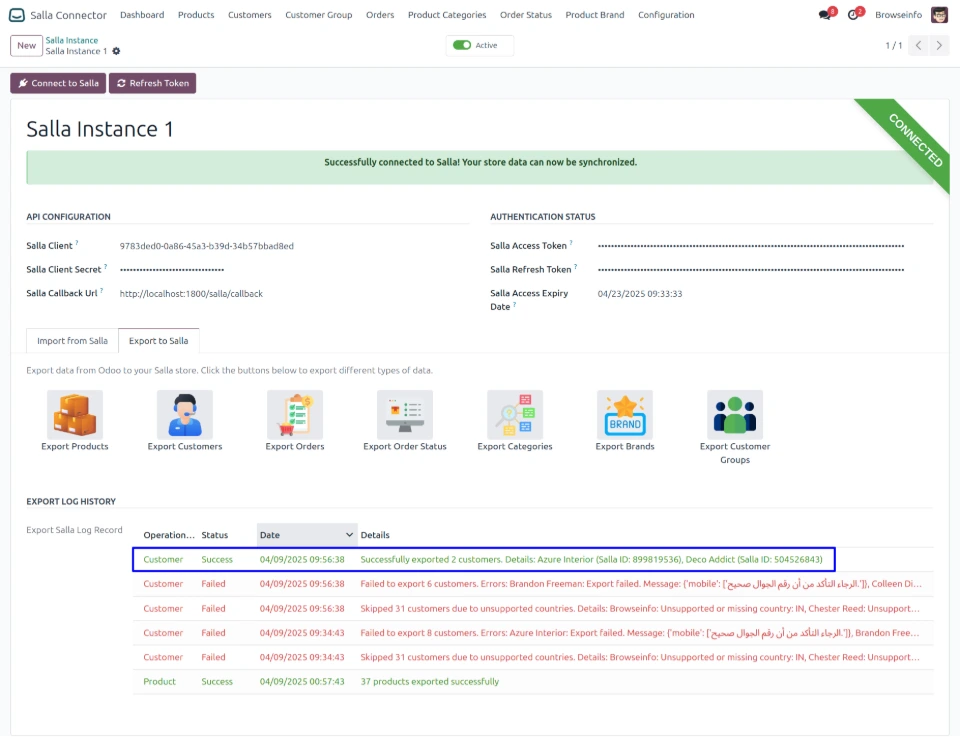
Exported Customers Log History
Users can view the customer export log history with the operation status, timestamp, and export details. After a successful export, the log displays a success status, along with the number of customers exported and their details.
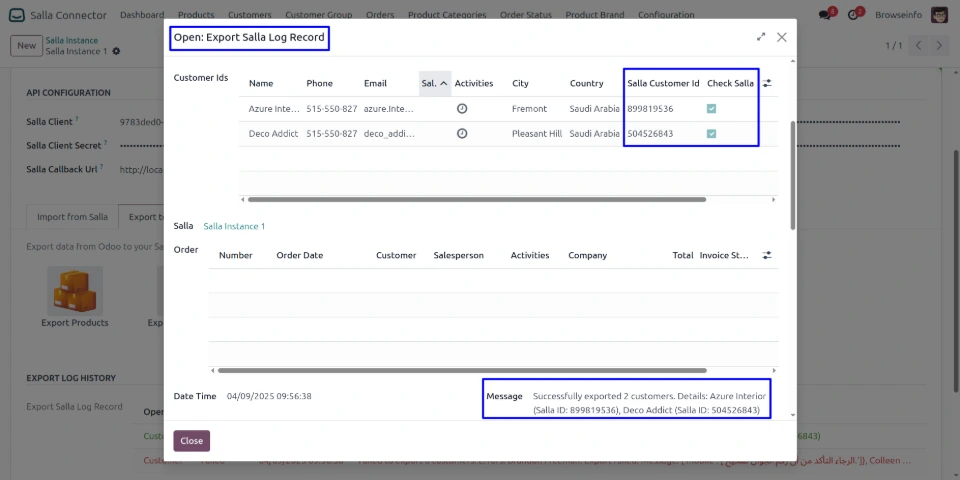
Exported Customer Details
Users can open the Export Salla Log Record to view detailed information for each exported customer, including the Salla Customer ID and verification status. The log also displays the export message and customer details for reference.
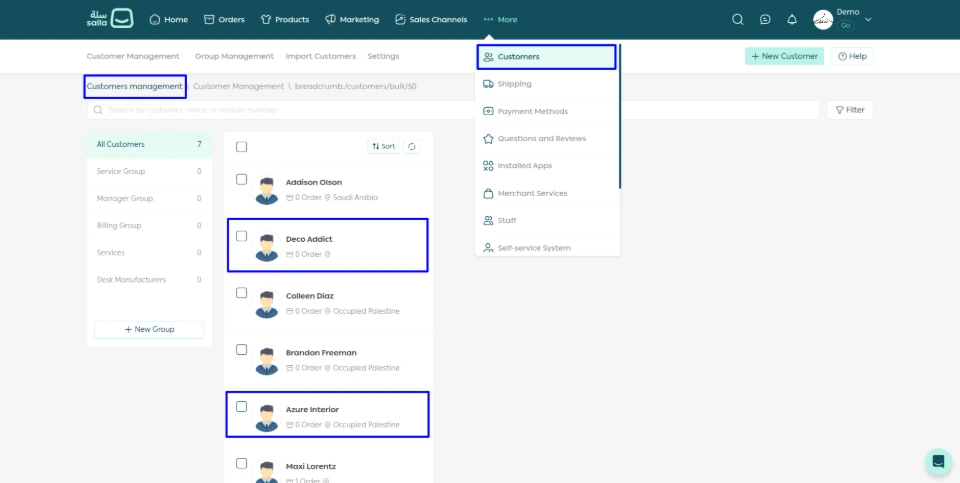
Exported Customers in Salla
Users can verify the exported Odoo customers in the Salla store under Customers, where the synchronized customer records are available with their respective details.
Export Orders to Salla
Users can click 'Export Orders' to export orders from Odoo to the Salla Store, allowing order data to be synchronized with Salla.
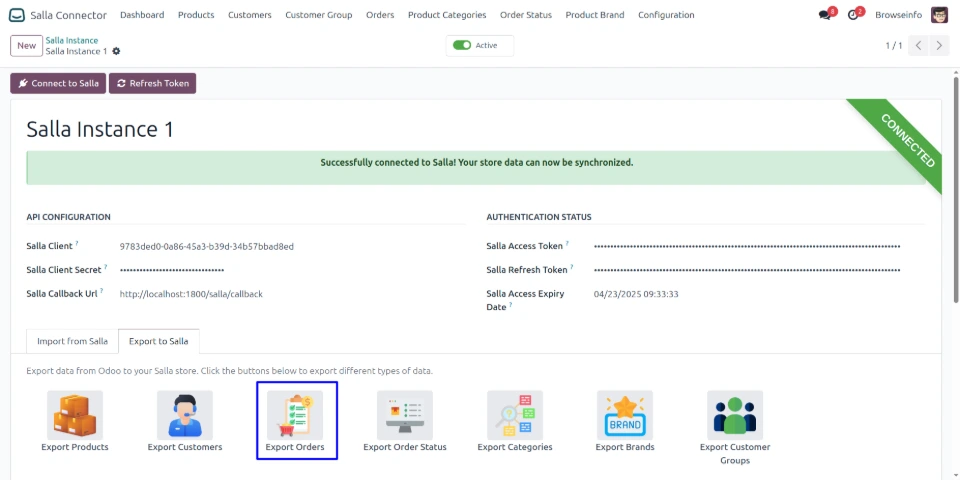
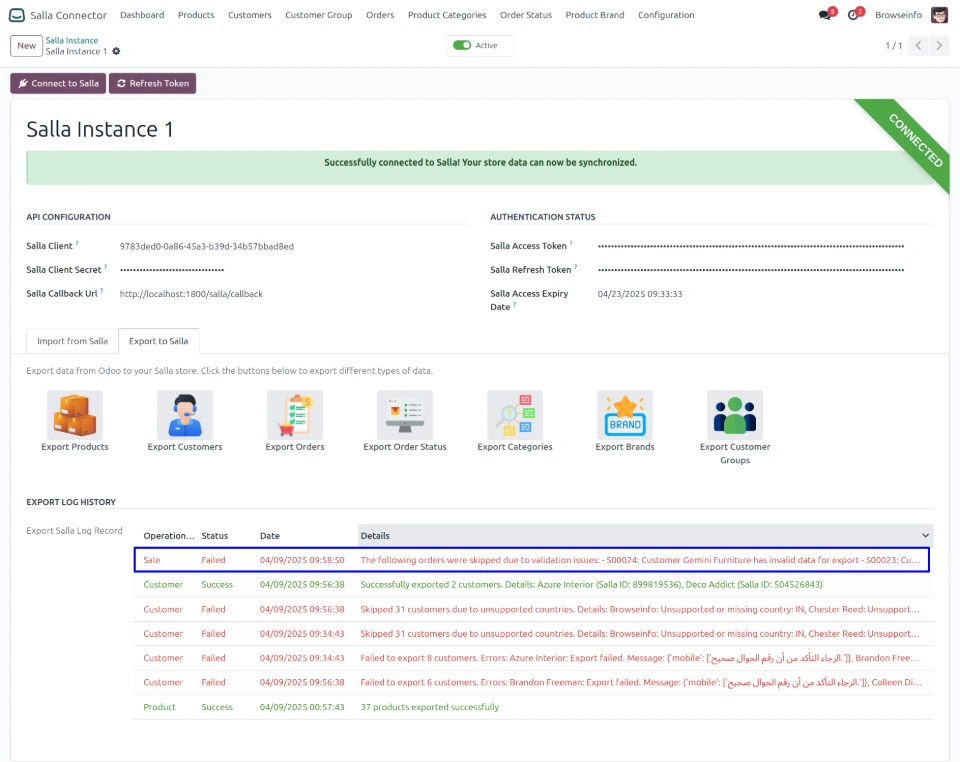
Failed Order Export Log
If the order data contains invalid or incomplete information, the order export may fail. The Export Log History records the failed export with a detailed error message, helping users identify the validation issue and correct the order data before retrying the export.
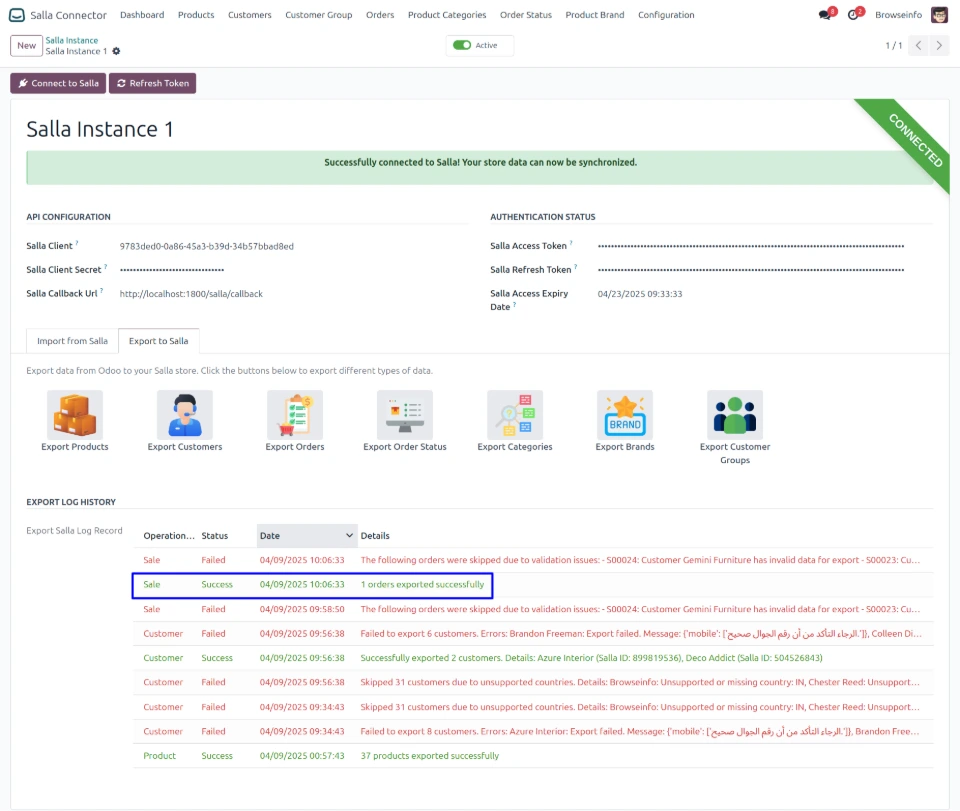
Exported Orders Log History
Displays a success message with the export timestamp and number of orders successfully exported in the Export Log History, allowing users to verify that the orders were successfully synchronized with Salla.
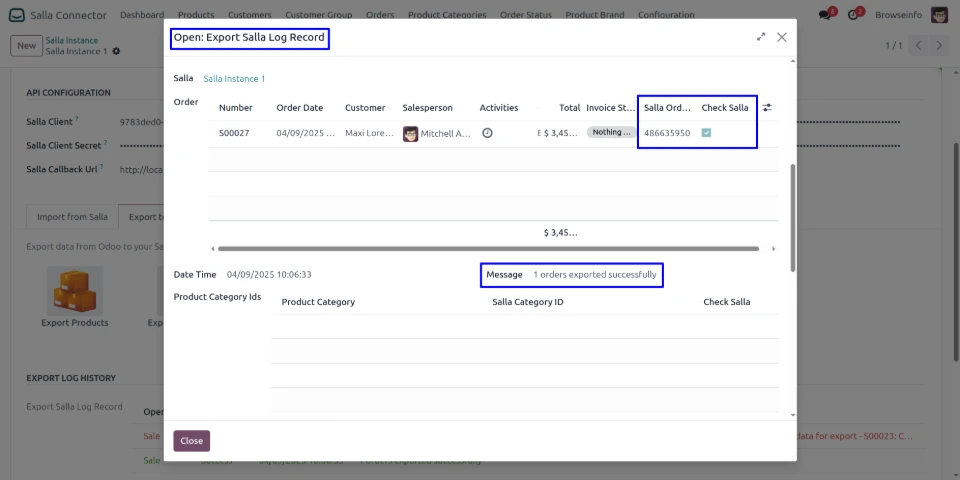
Exported Order Details
Detailed log view displays each exported order with its Salla Order ID and verification status, along with the export timestamp and success message, allowing users to verify the order synchronization.
Exported Orders in Salla
Exported orders from Odoo are available in the Salla Store, where users can view the order status, customer details, order items, quantities, pricing, and total order amount.
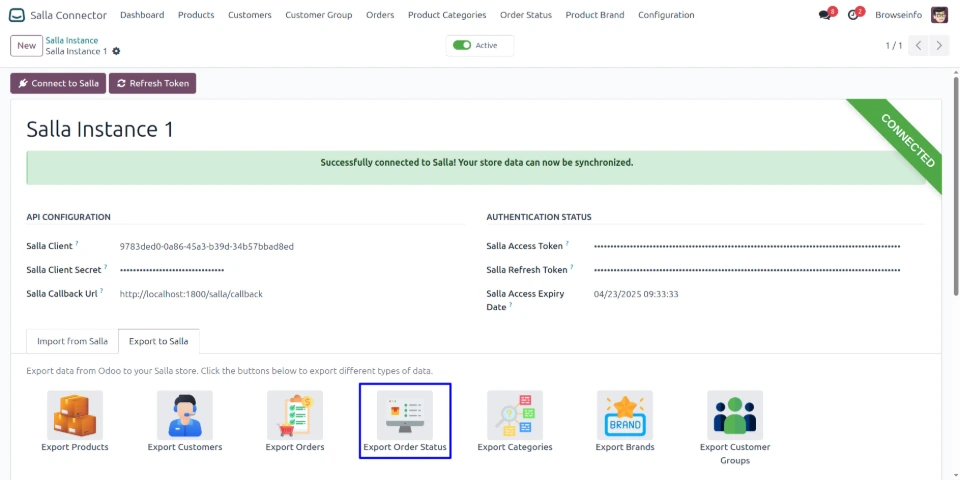
Export Order Status to Salla
Click Export Order Status to export all order statuses from Odoo to the Salla Store, keeping order status information synchronized between both platforms.
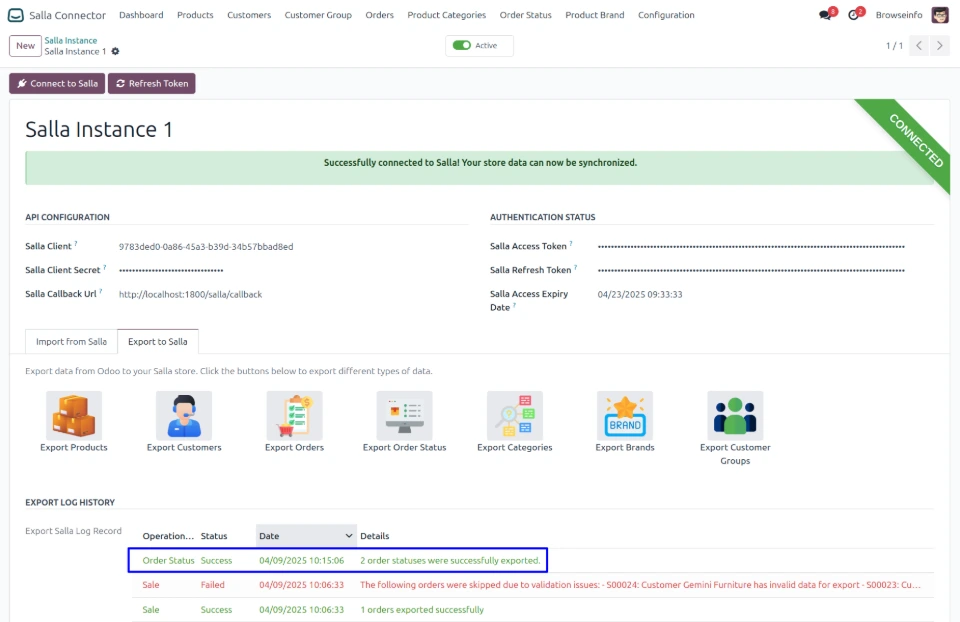
Exported Order Status Log History
Displays a success message with the export timestamp and number of order statuses successfully exported in the Export Log History, allowing users to verify that the order statuses were synchronized with Salla.
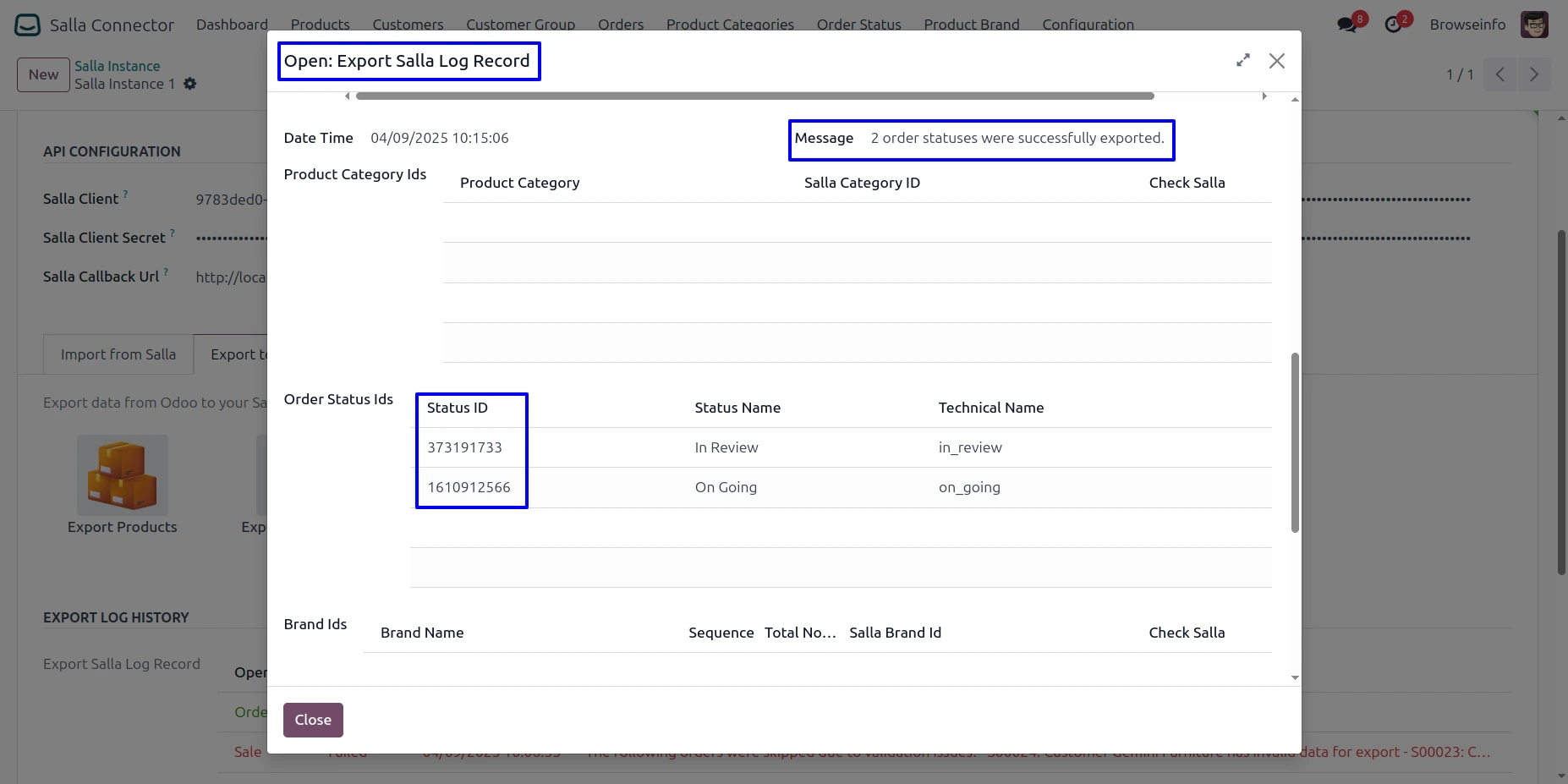
Exported Order Status Details
Detailed log view displays each exported order status with its Salla Status ID, status name, and technical name, allowing users to verify the order status synchronization with Salla.
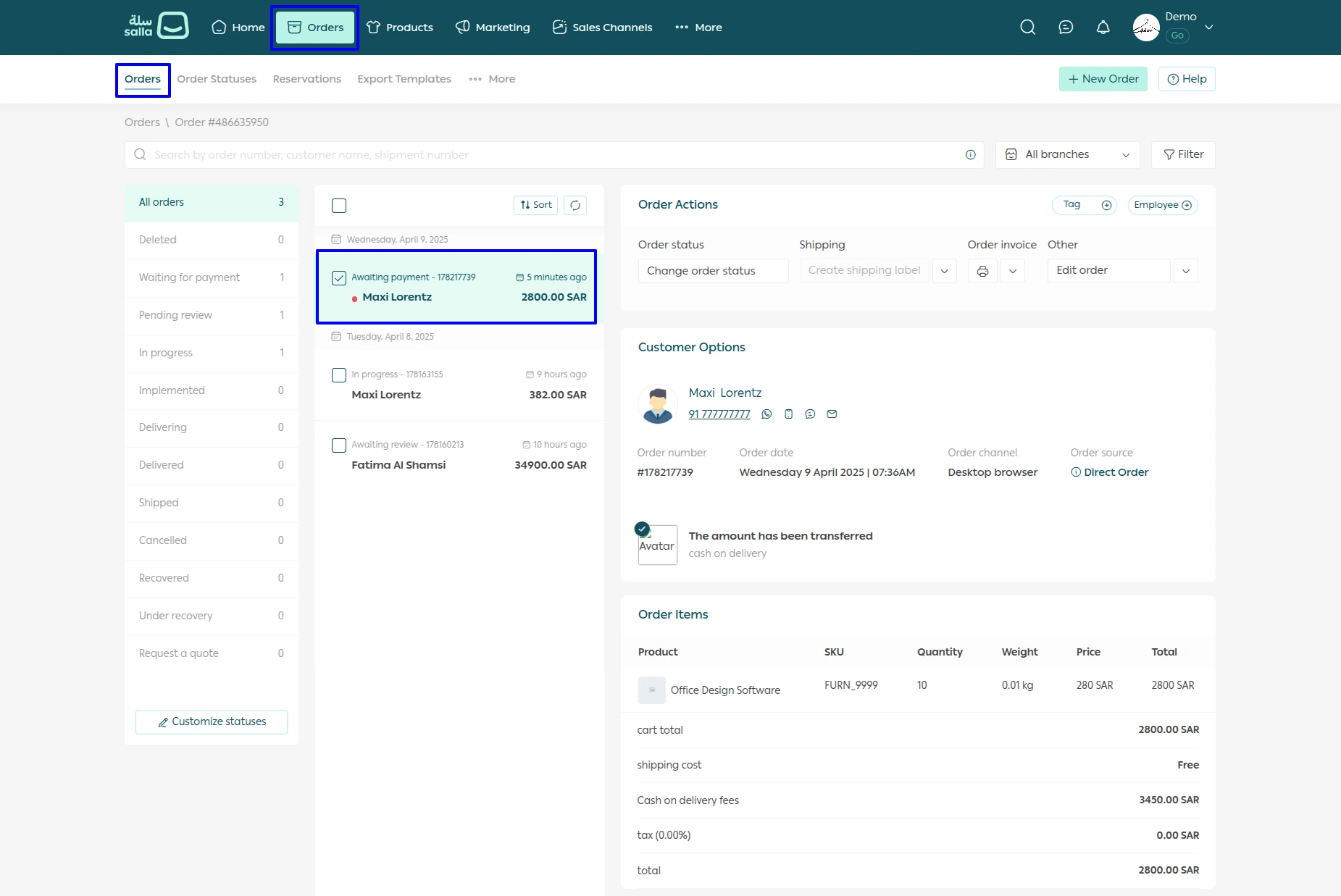
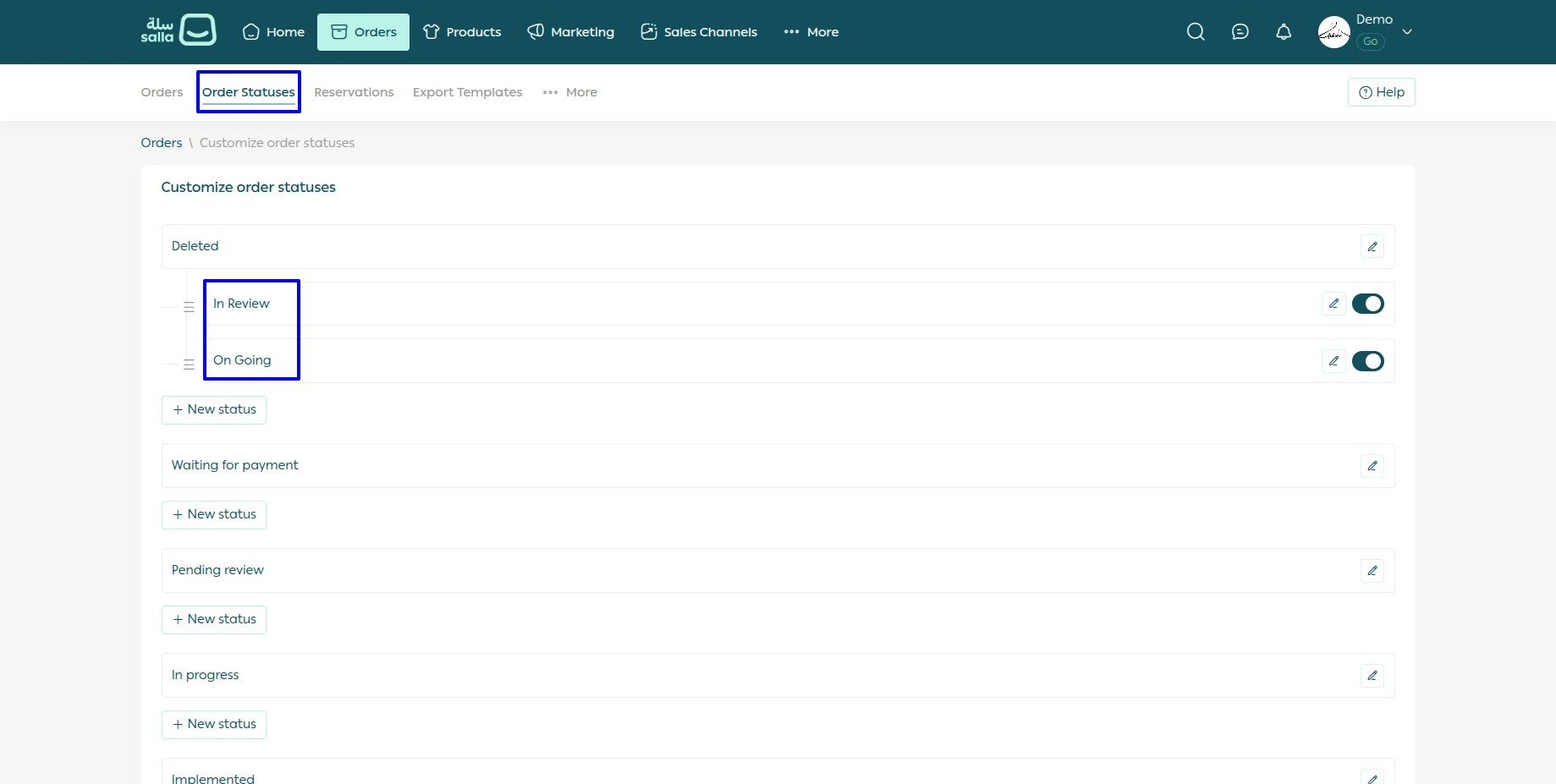
Exported Order Statuses in Salla
Exported order statuses are available in the Salla Store, where users can view the synchronized statuses such as In Review and On Going and manage them according to their order workflow.
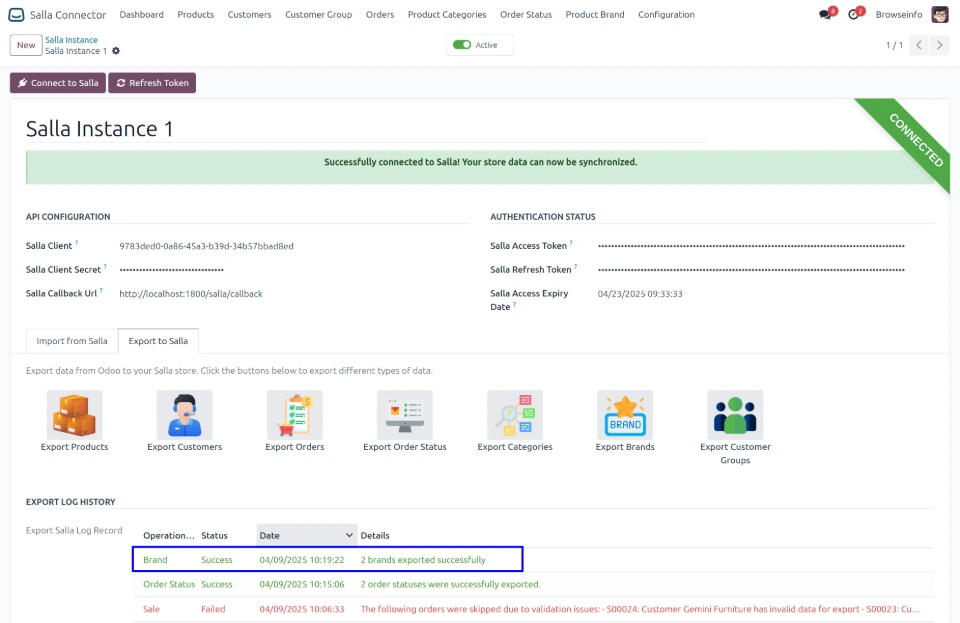
Exported Brands Log History
Displays a success message with the export timestamp and number of brands successfully exported in the Export Log History, allowing users to verify that the brands were successfully synchronized with Salla.
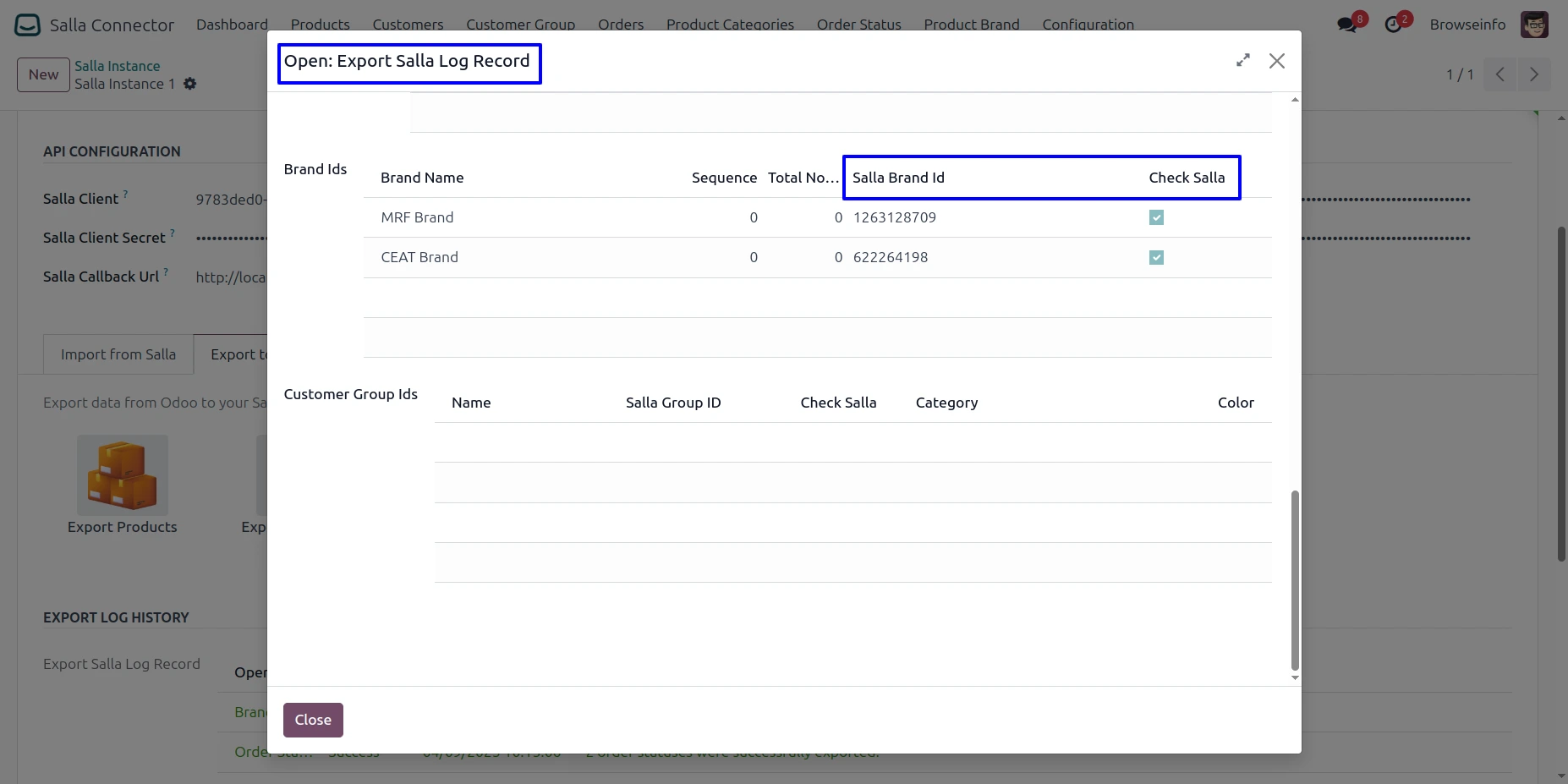
Exported Brand Details
Detailed log view displays each exported brand with its Salla Brand ID and verification status, allowing users to verify that the brands were successfully synchronized with Salla.
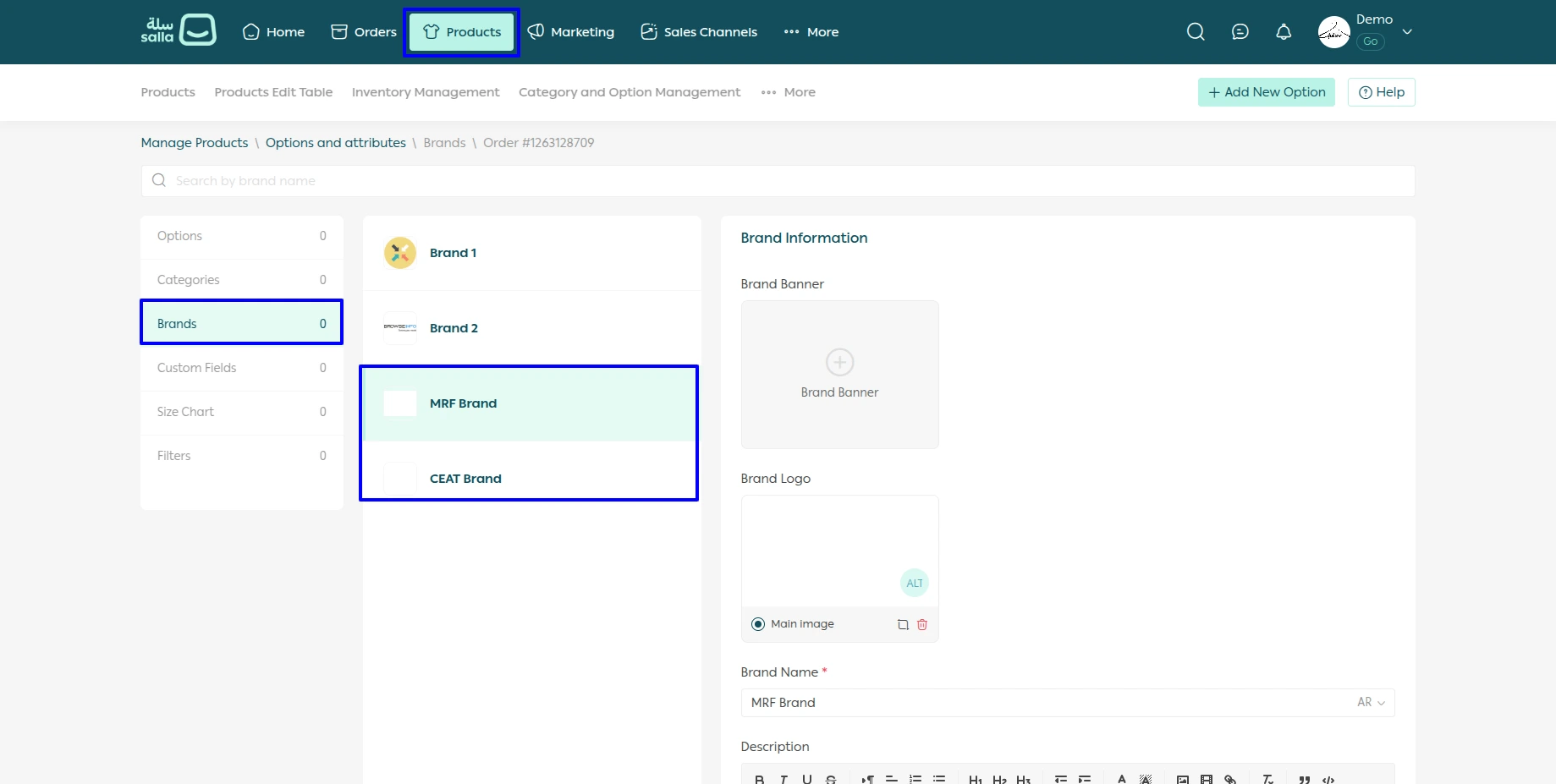
Exported Brands in Salla
Exported brands are available in the Salla Store, where users can view the synchronized brand details, including the brand name, logo, banner, and description.
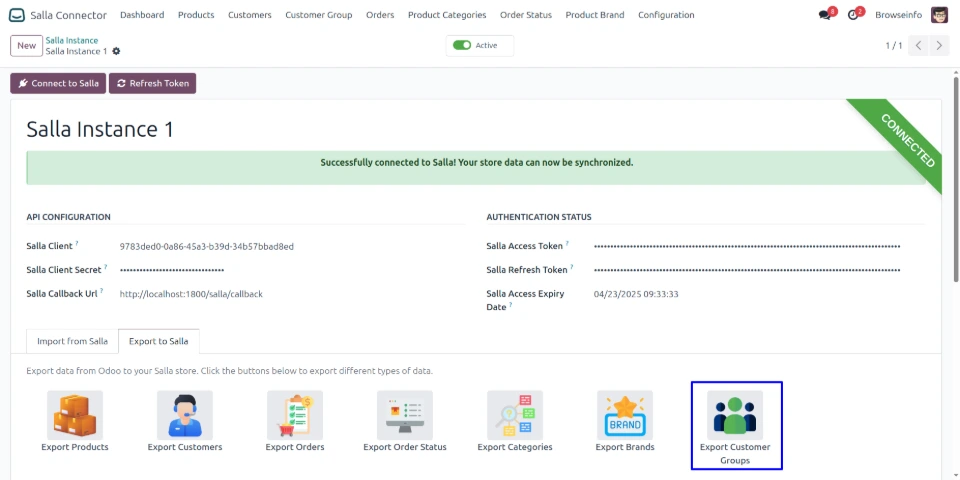
Export Customer Groups to Salla
Click Export Customer Groups to export all customer groups from Odoo to the Salla Store, keeping customer group information synchronized between both platforms.
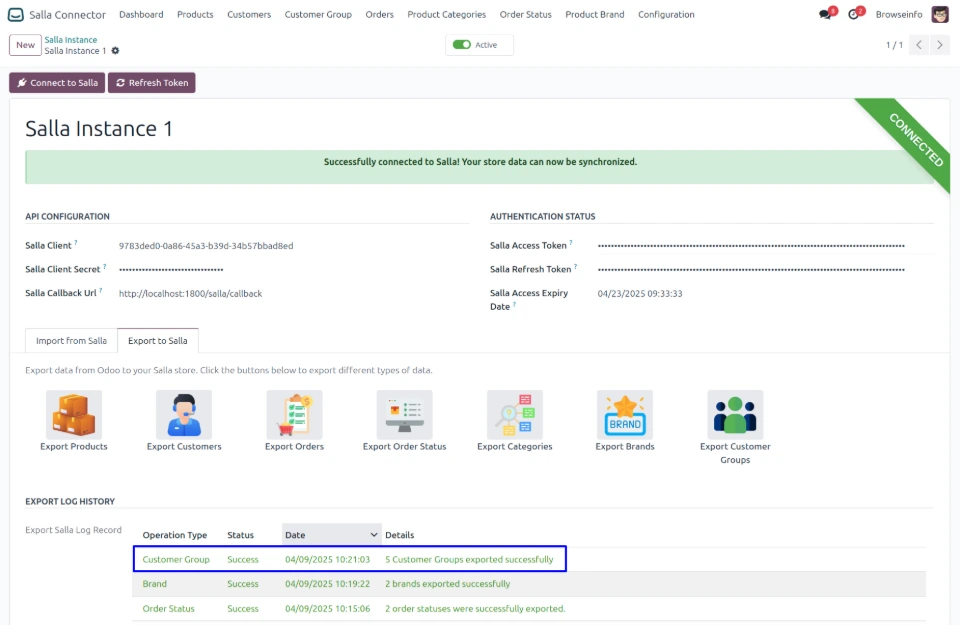
Exported Customer Groups Log History
Displays a success message with the export timestamp and number of customer groups successfully exported in the Export Log History, allowing users to verify that the customer groups were successfully synchronized with Salla.
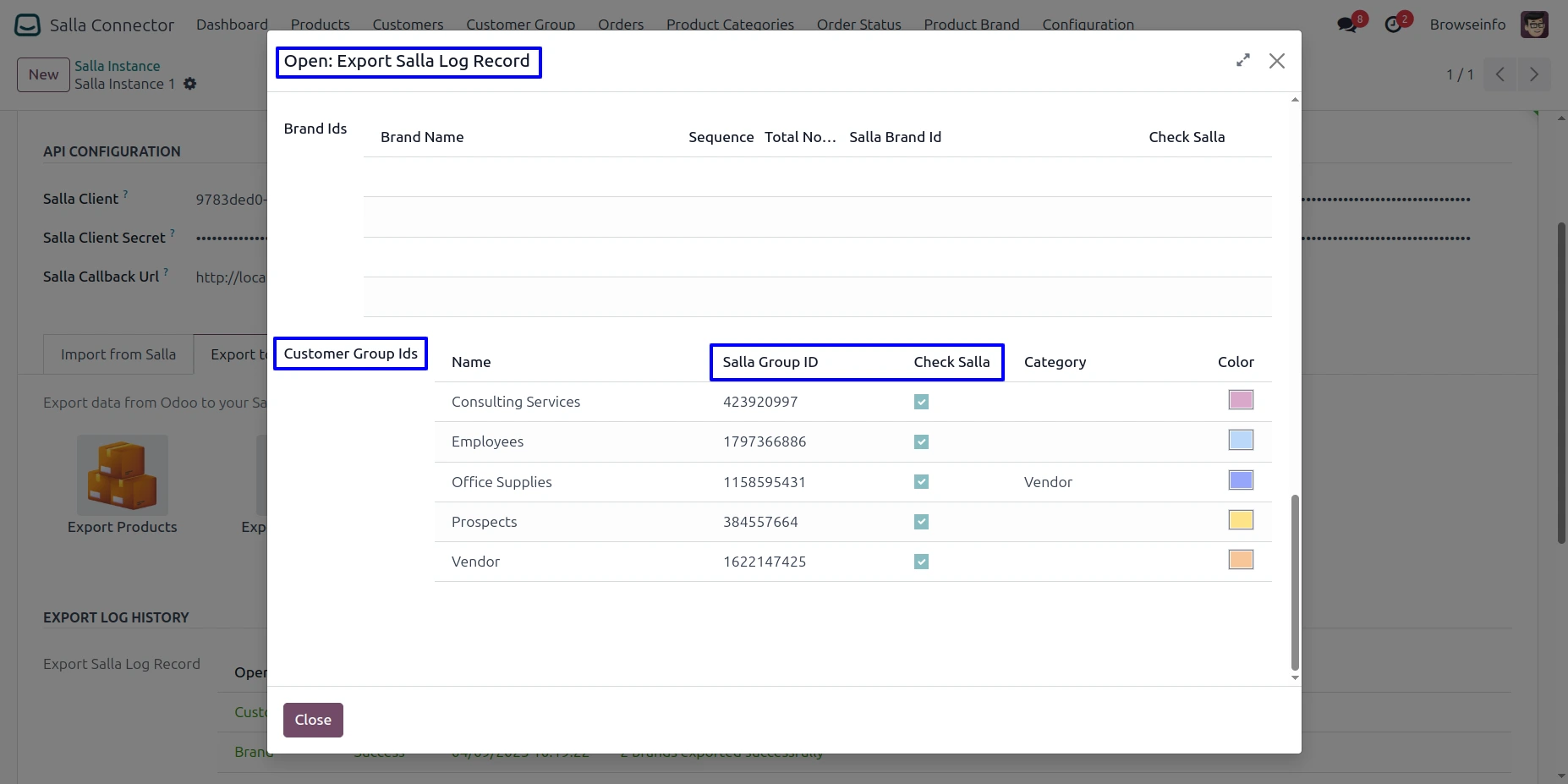
Exported Customer Groups Details
The detailed log view displays each exported customer group along with its Salla Group ID and verification status, allowing users to verify the synchronization of customer groups with Salla.
Exported Customer Groups in Salla
Exported customer groups are available in the Salla store, allowing users to view and manage the synchronized groups alongside their existing customer groups.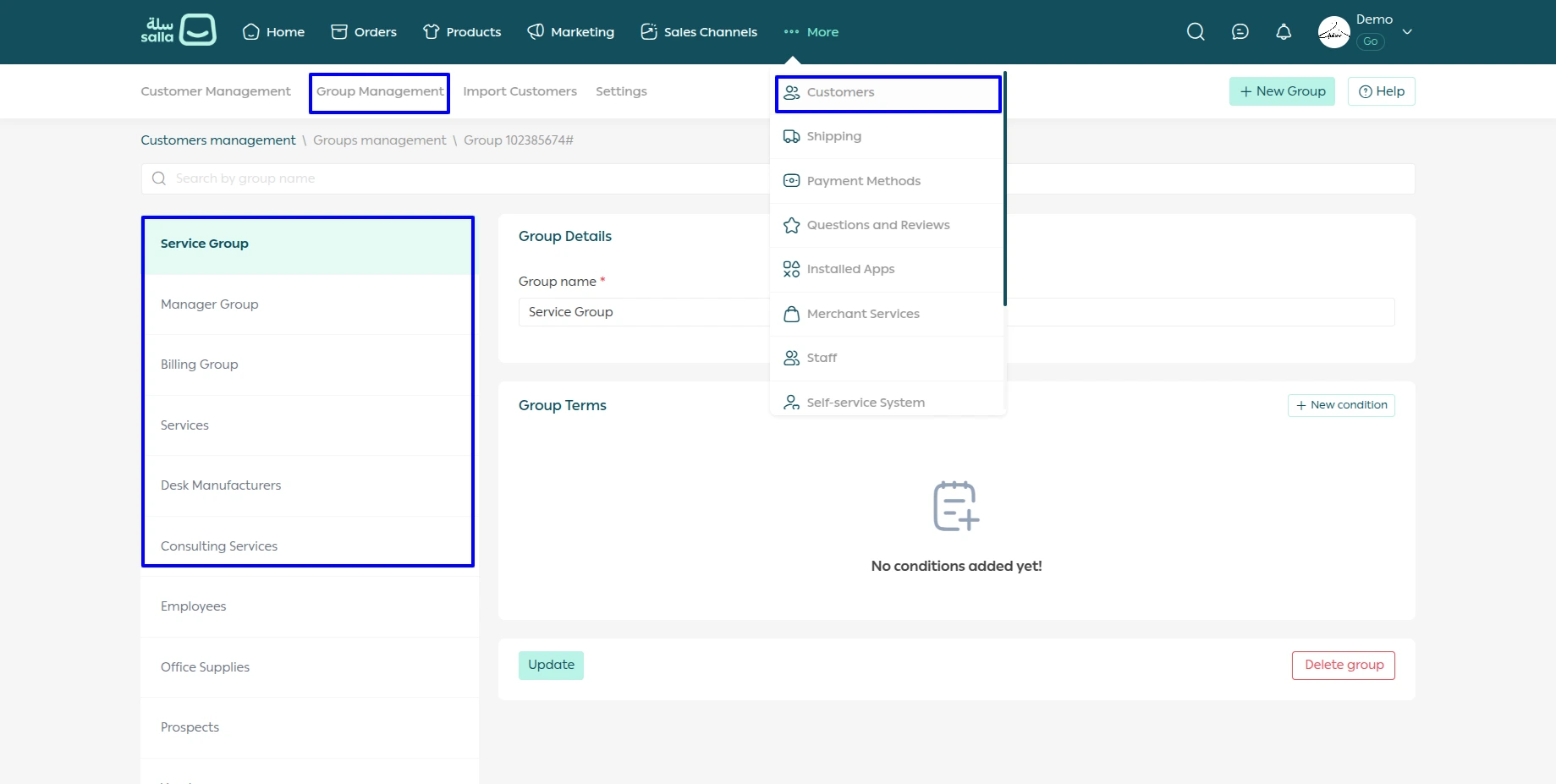
Salla Instance Kanban View
Validation for Instance Activation
When a user tries to activate a Salla instance without the required Access Token and Refresh Token, a validation error is displayed, prompting the user to configure the required authentication tokens before activating the instance.
Salla Dashboard View
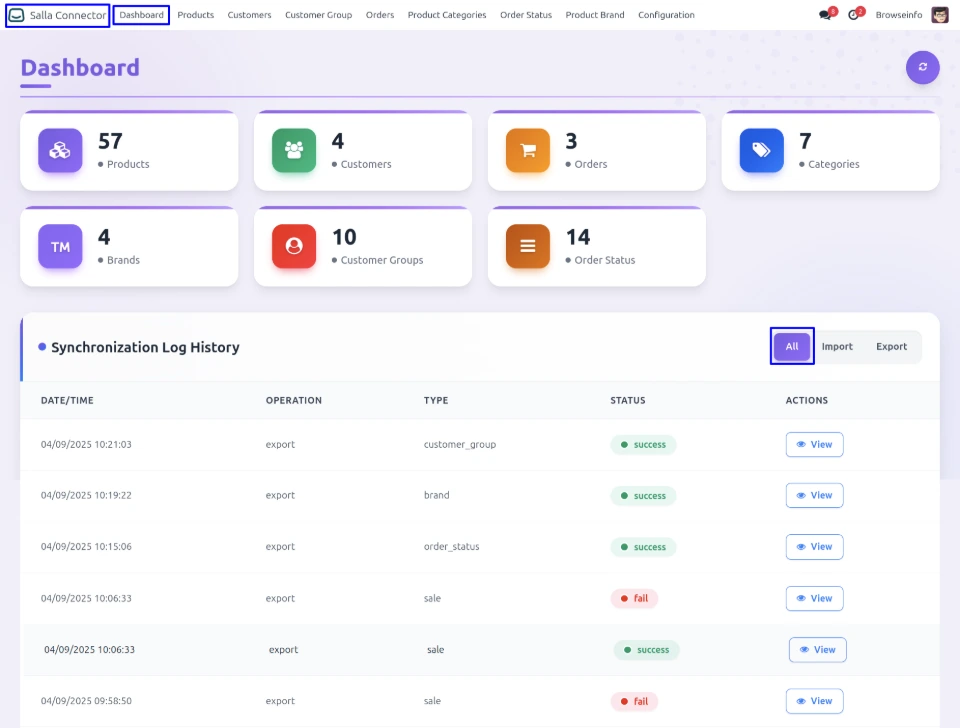
The Salla Dashboard provides an overview of synchronized data, including imported and exported records. Users can monitor products, customers, orders, categories, brands, customer groups, and order statuses, along with their synchronization log history and success or failure status.
Imported Records in Salla Dashboard
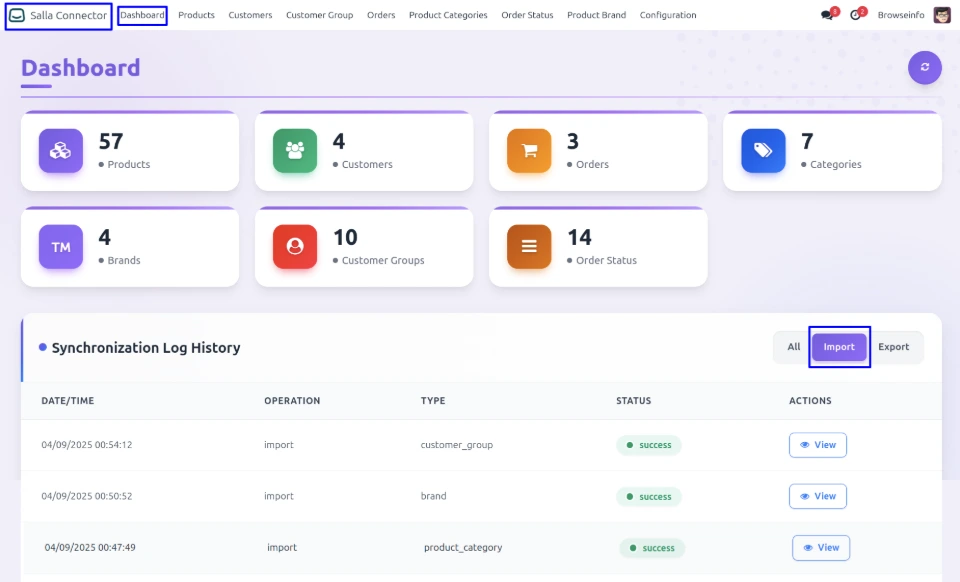
The Salla Dashboard displays imported records in the Synchronization Log History. Users can select the Import filter to view imported data, including the operation type, record type, date and time, synchronization status, and detailed log information.
Exported Records in Salla Dashboard
The Salla Dashboard displays exported records in the Synchronization Log History. Users can select the Export filter to view exported data along with the operation type, record type, date and time, synchronization status, and detailed log information.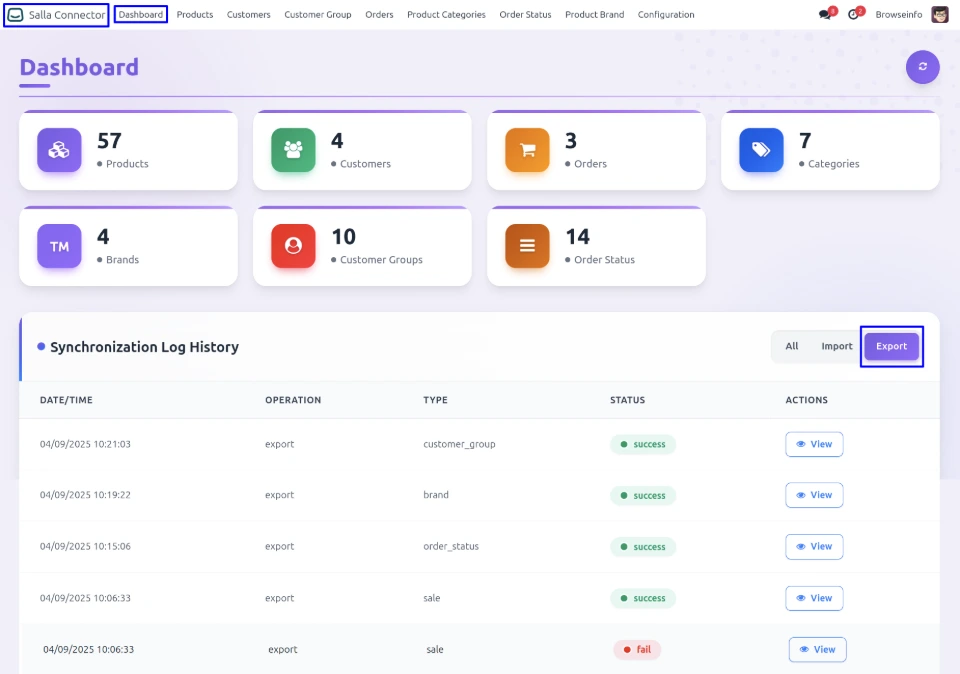
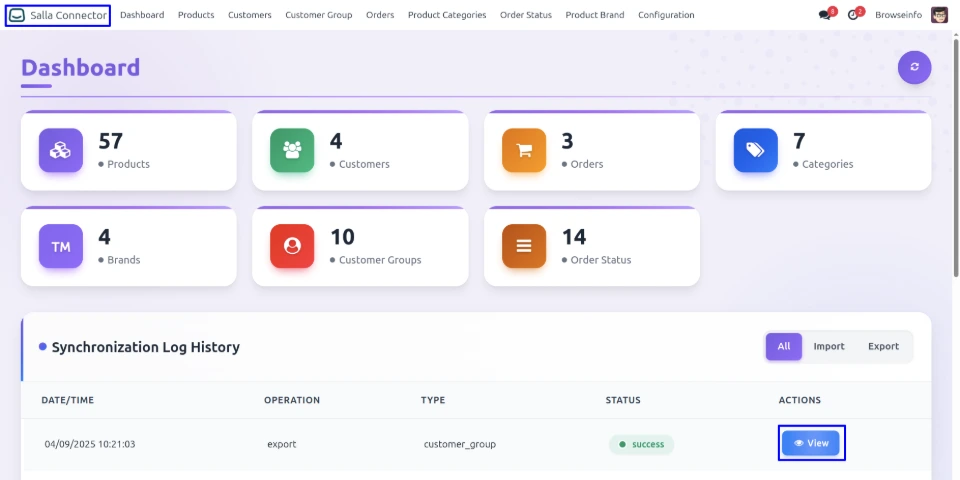
View Synchronization Log Details
In the Synchronization Log History, users can click the View button for a particular record to open and review its detailed synchronization history, including the operation details, record type, status, and related synchronization information.
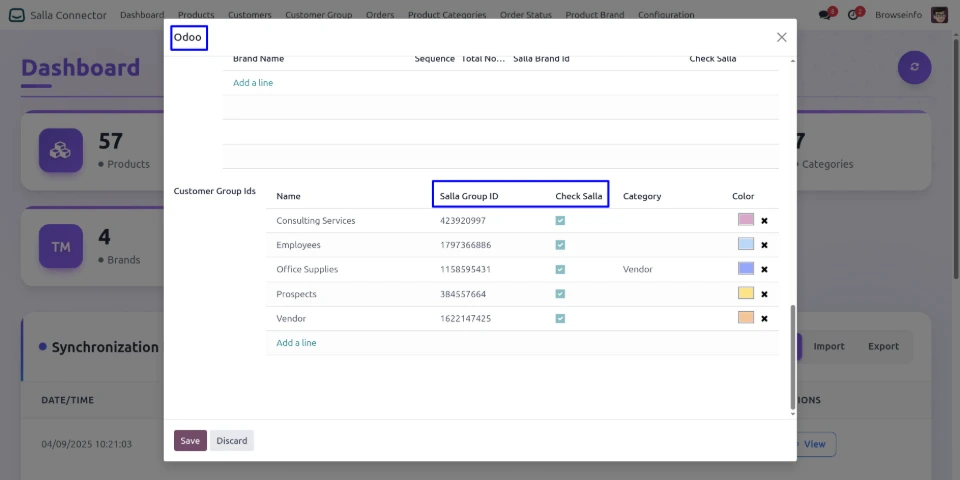
Detailed Log History
The detailed log history is displayed in a wizard, where users can review the complete synchronization details of the selected record, including its operation, status, timestamp, related records, and Salla IDs.
Product Card Details
Users can click on the Product card from the Salla Dashboard to open a wizard displaying the related imported or exported product records and their synchronization details.
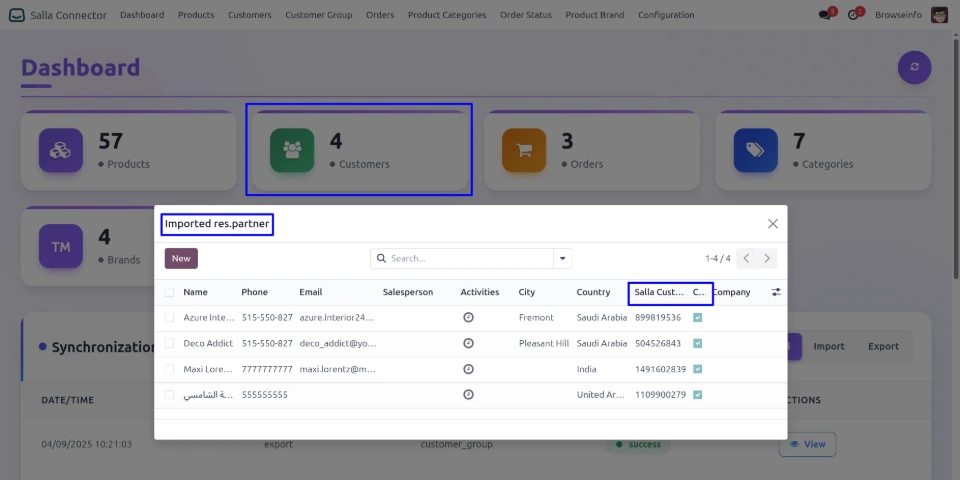
Customer Card Details
Users can click on the Customer card from the Salla Dashboard to open a wizard displaying the related imported or exported customer records along with their synchronization details.
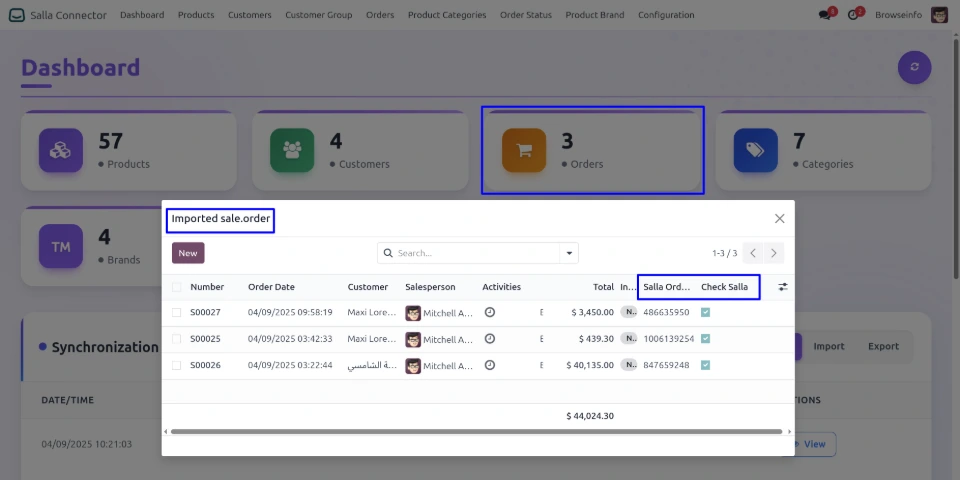
Order Card Details
Users can click on the Order card from the Salla Dashboard to open a wizard displaying the related imported or exported order records along with their synchronization details.
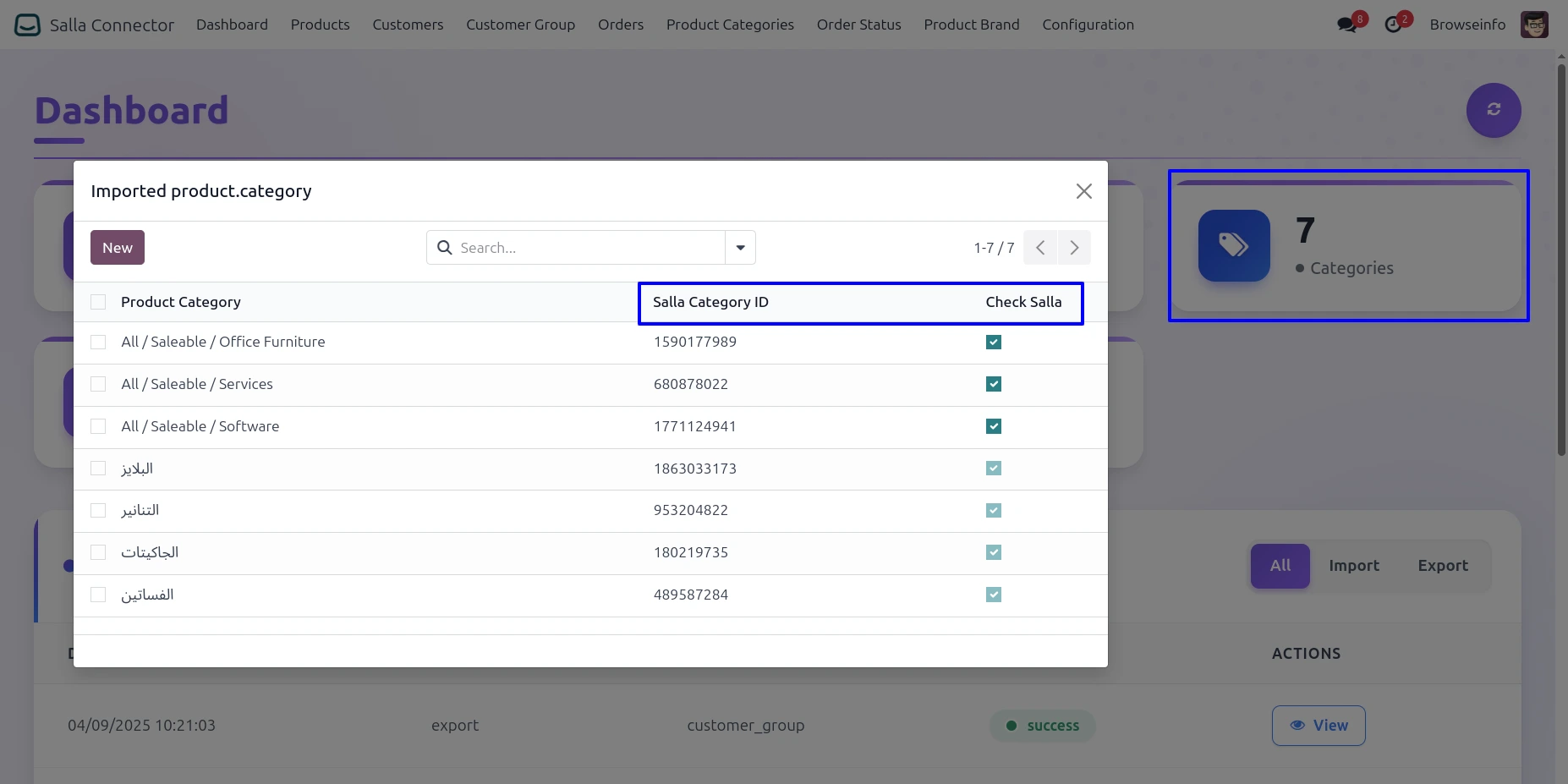
Product Categories Card Details
Users can click the Product Categories card from the Salla Dashboard to open a wizard displaying the related imported or exported product category records along with their synchronization details.
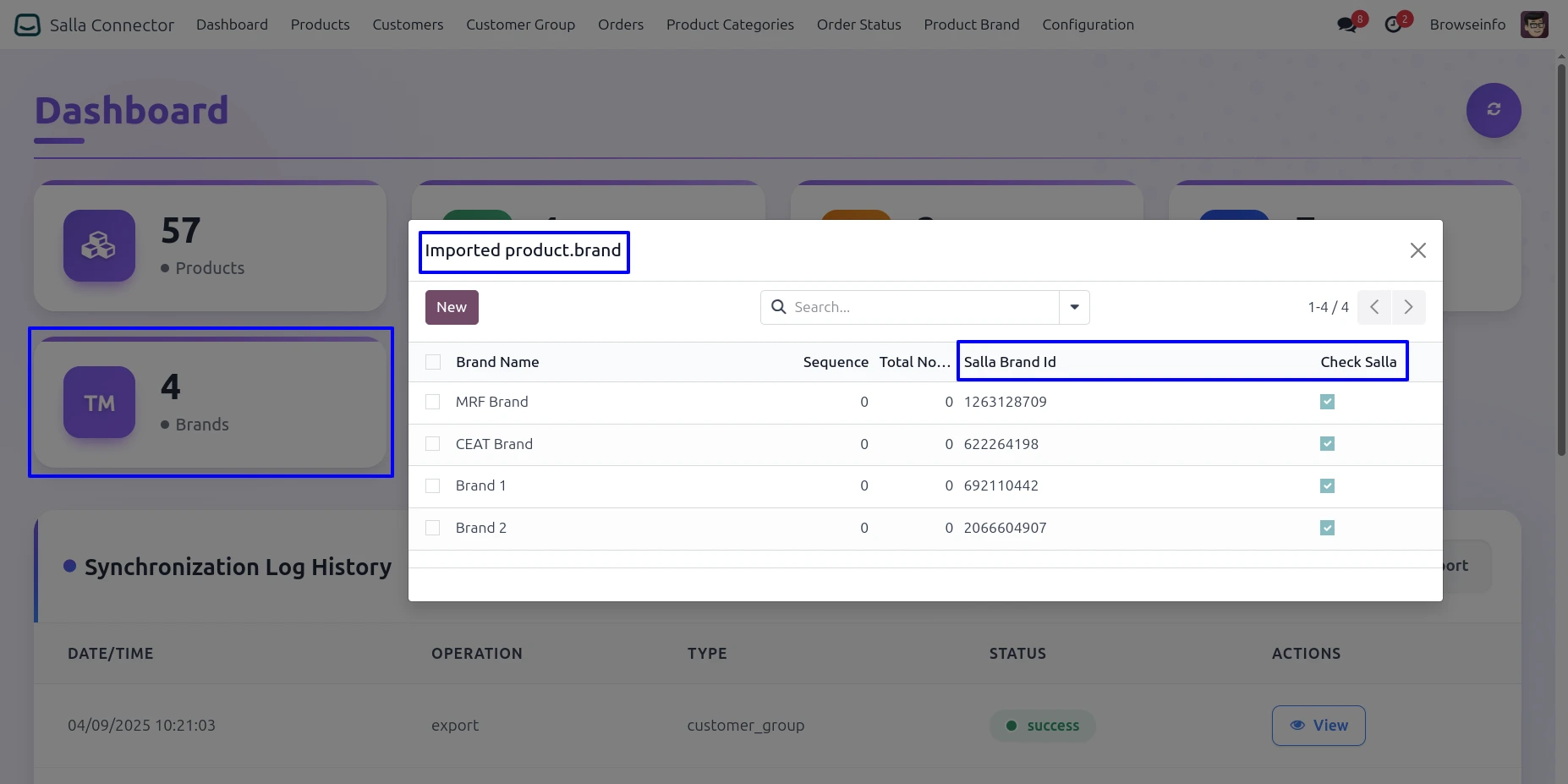
Brand Card Details
Users can click the Brands card from the Salla Dashboard to open a wizard displaying the related imported or exported brand records along with their synchronization details.
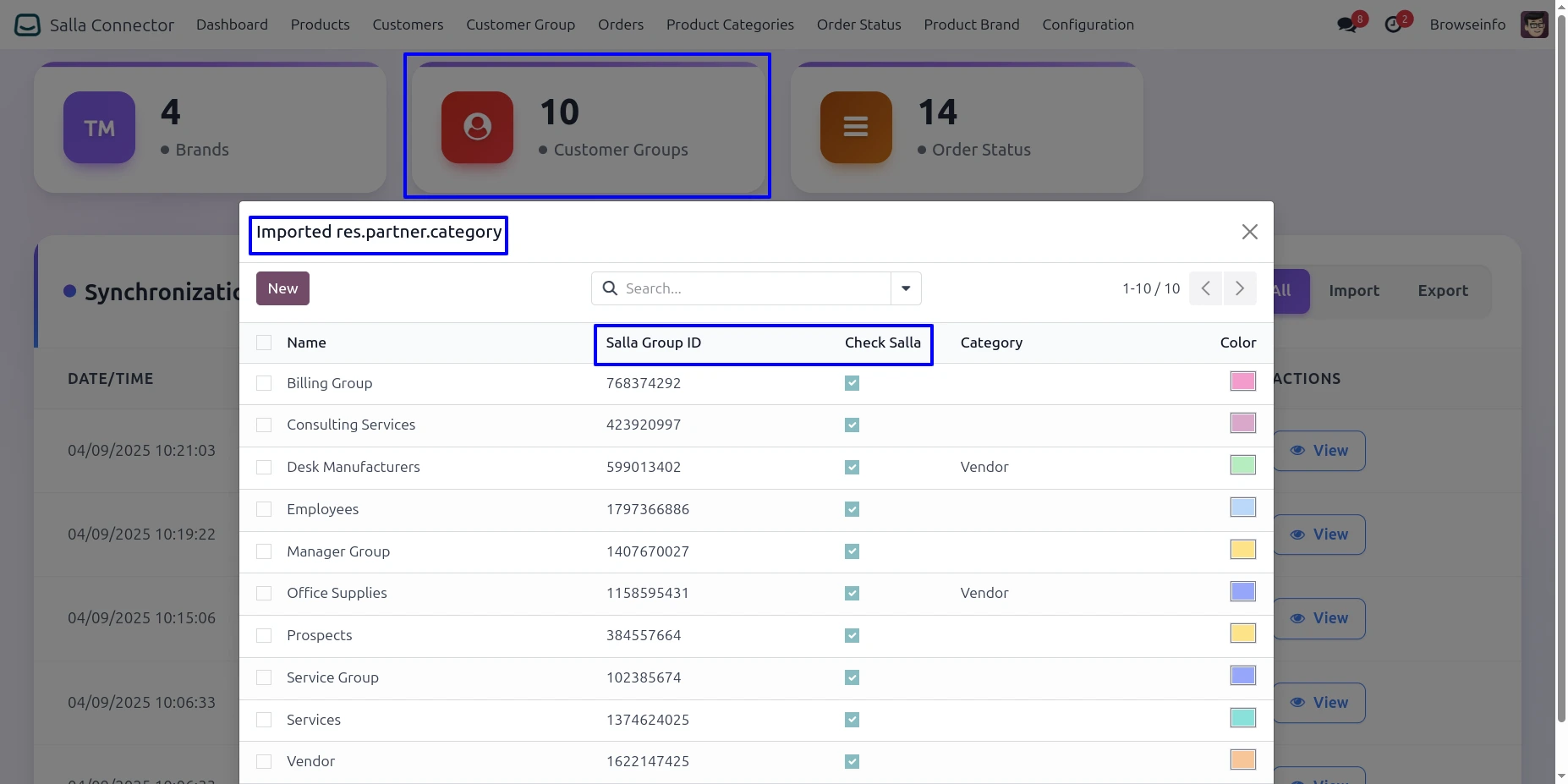
Customer Group Card Details
Users can click the Customer Groups card from the Salla Dashboard to open a wizard displaying the related imported or exported customer group records along with their synchronization details.
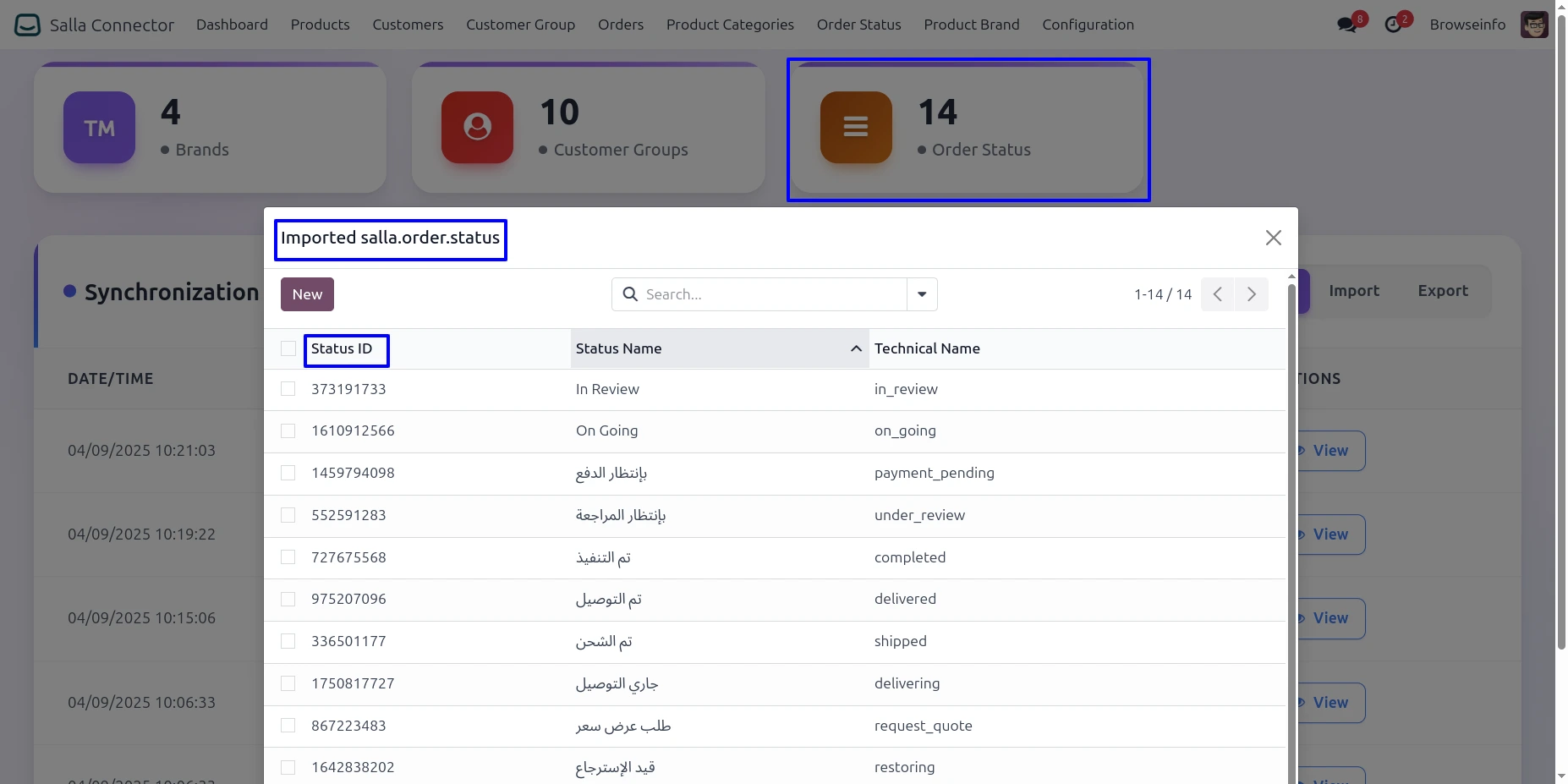
Order Status Card Details
Users can click the Order Status card from the Salla Dashboard to open a wizard displaying the related imported or exported order status records along with their synchronization details.