Asana Account Settings
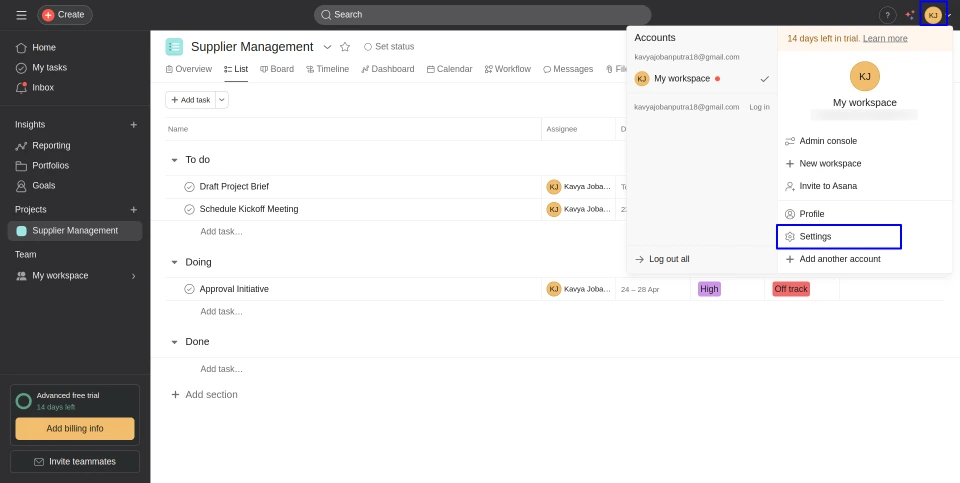
Users need to log in to Asana, click the profile icon, and select Settings to access their Asana account configuration.
Asana Developer Console
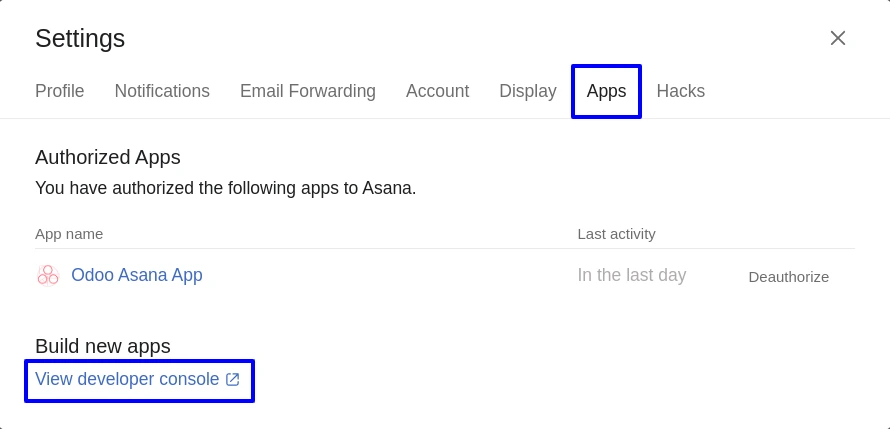
In Asana Settings, users can navigate to the Apps tab and click View Developer Console to access the developer settings and manage applications for the Asana integration.
Create App in Asana
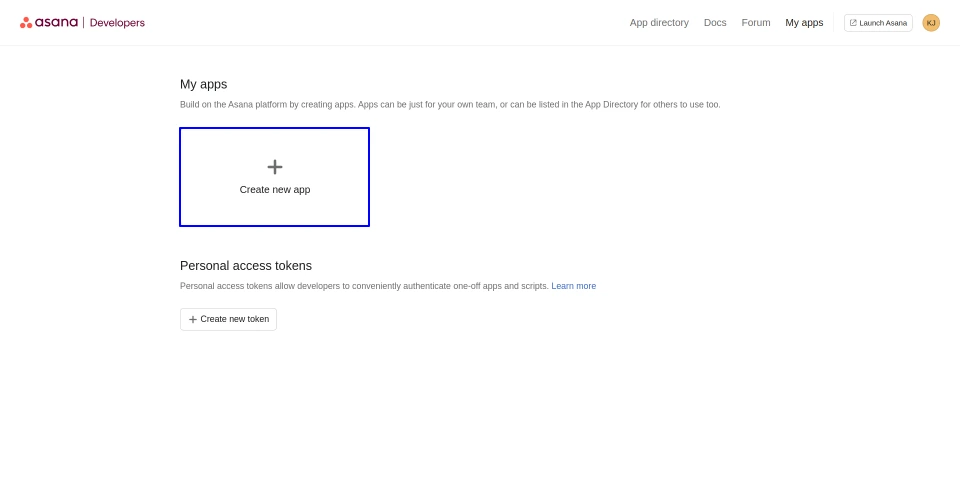
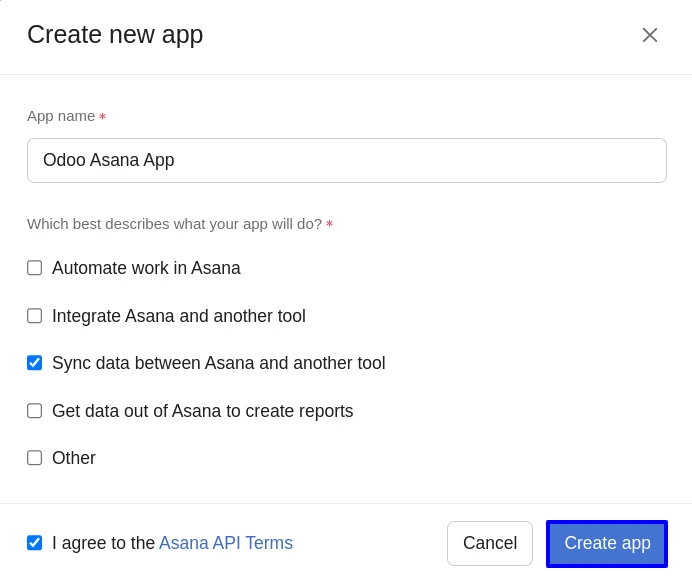
Users can click Create new app to create a new Asana application for the integration. Existing applications can also be accessed to manage their API credentials and integration settings.
Configure Asana OAuth
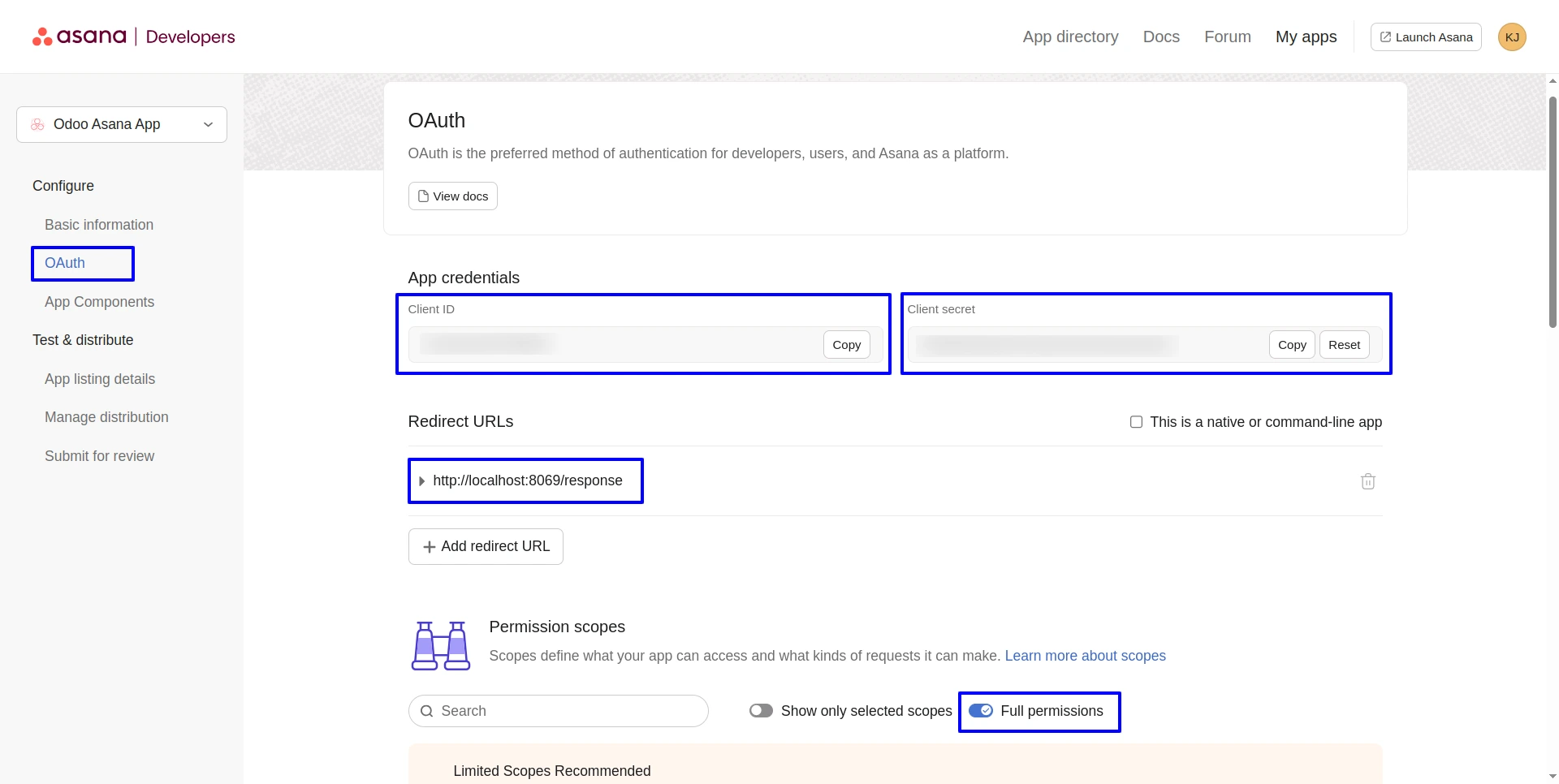
Users can open the OAuth settings and use the provided Client ID and Client Secret to connect Asana with Odoo. They can also add the Odoo server's Redirect URL and enable Full Permissions to grant the required access for the integration.
Add Workspace in Asana
Users can navigate to Manage Distribution, select Specific Workspaces, and add the required workspace to allow the Asana app to be used within that workspace.

Asana Connector Module
Once the Asana Connector module is installed, users can access Asana directly from the Odoo dashboard and use the integration features.

Create a New Asana Instance
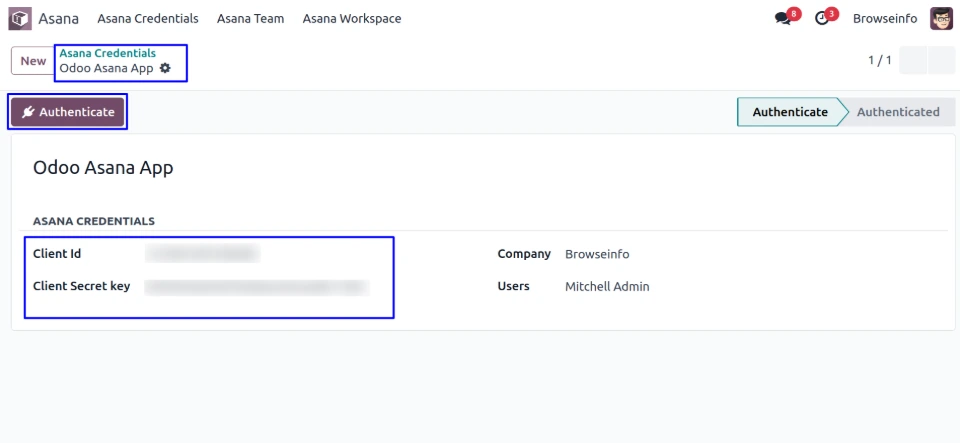
Users can create a new Asana Instance by clicking the New button, entering the Client ID and Client Secret Key, and then clicking Authenticate to establish the connection with Asana.
Grant Asana Access
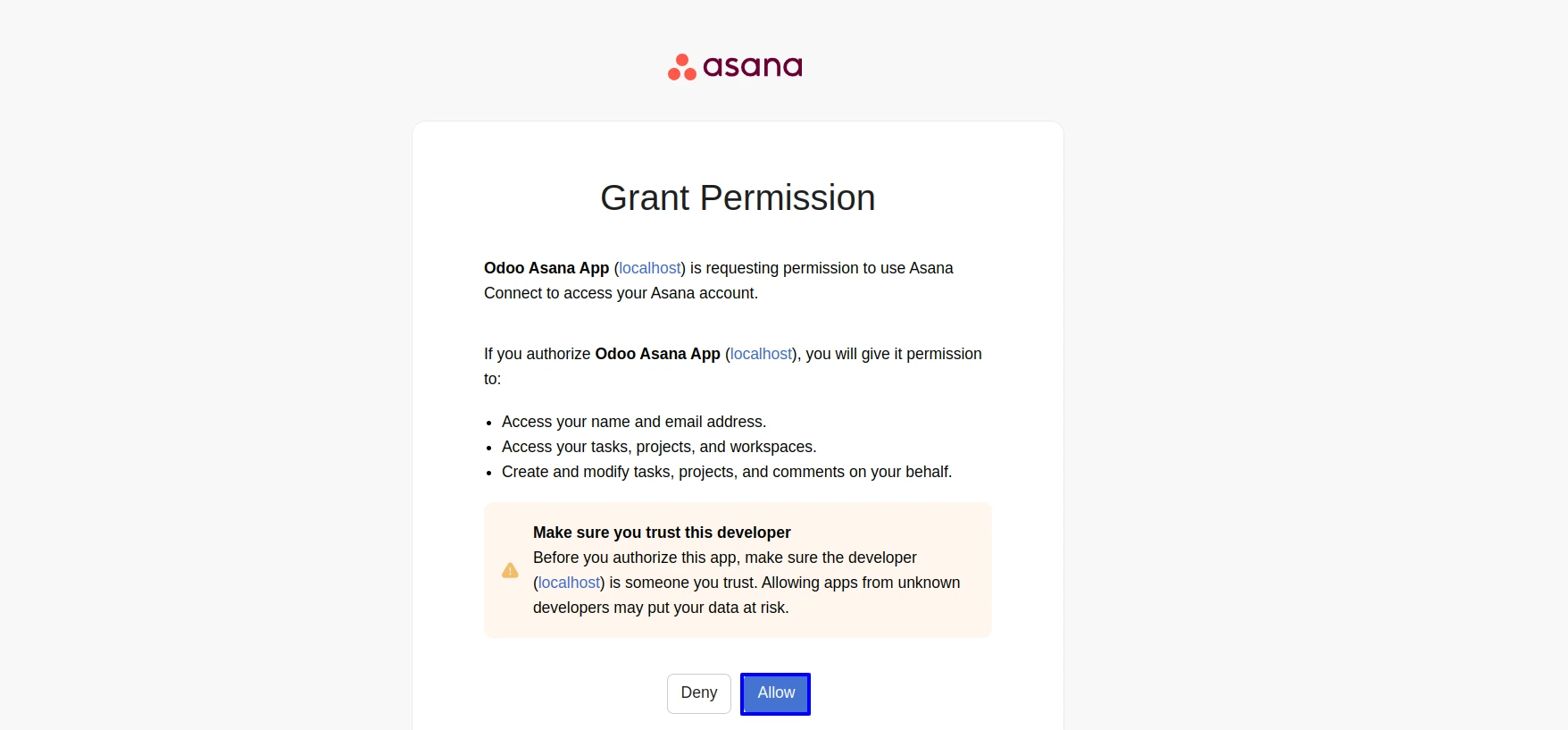
After clicking Authenticate, users are redirected to the Asana authorization page. Users need to review the requested permissions and click Allow to grant access to the Asana Connector.
Asana Credentials Authenticated
After granting access, the Asana credentials are successfully authenticated. Users can now use the Sync Project, Sync Task, and Sync User options to synchronize data between Asana and Odoo.

Sync Project from Asana to Odoo
Click the Sync Project button to import projects from Asana into Odoo and synchronize project data between both platforms.

Project in Asana Dashboard
Users can view the Supplier Management project in the Asana dashboard, along with its tasks organized by stages such as To Do, Doing, and Done.

Synced Project
Users can view the Supplier Management project synced from Asana directly in Odoo's Projects module, allowing them to manage the project from Odoo.

Sync Tasks from Asana to Odoo
Users can click the Sync Task button to import tasks from Asana into Odoo and synchronize task data with the corresponding projects.

Synced Tasks
Users can view the tasks and tags synced from Asana in the corresponding Odoo project, organized by task stages such as To Do, Doing, and Done.

Sync Users from Asana to Odoo
Users can click the Sync User button to import users from Asana into Odoo and synchronize user information between both platforms.

Synced Users
Users can view the Asana users synced with Odoo under the Users & Companies > Users menu, making it easier to manage team members and user assignments from Odoo.

Export Projects from Odoo to Asana
Users can select a project from the Projects module and click Asana Export Project to export the project from Odoo to Asana.

Asana Export Project Wizard
Users can review the selected project and Asana connector details, then click Export Project to export the project from Odoo to Asana.

Exported Project in Asana Dashboard
Users can view the exported project in the Asana dashboard after successfully exporting it from Odoo, allowing the project to be managed and tracked in Asana.
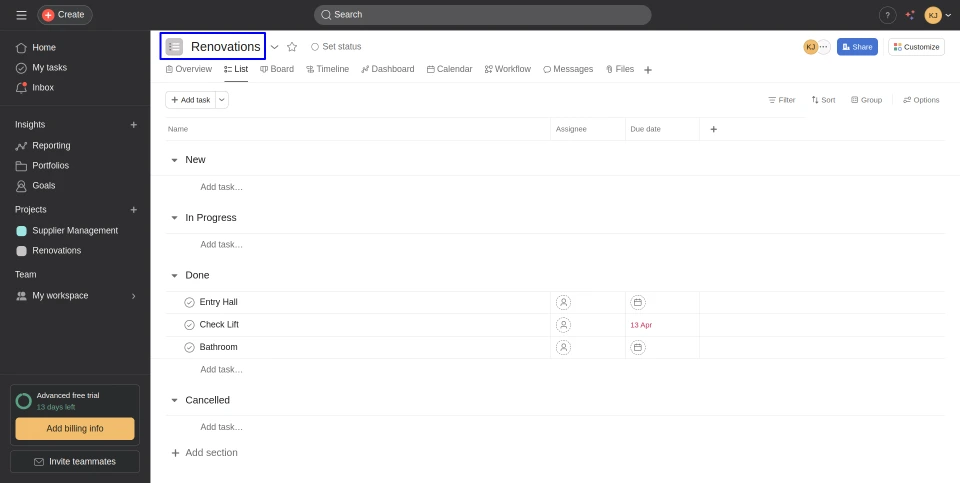
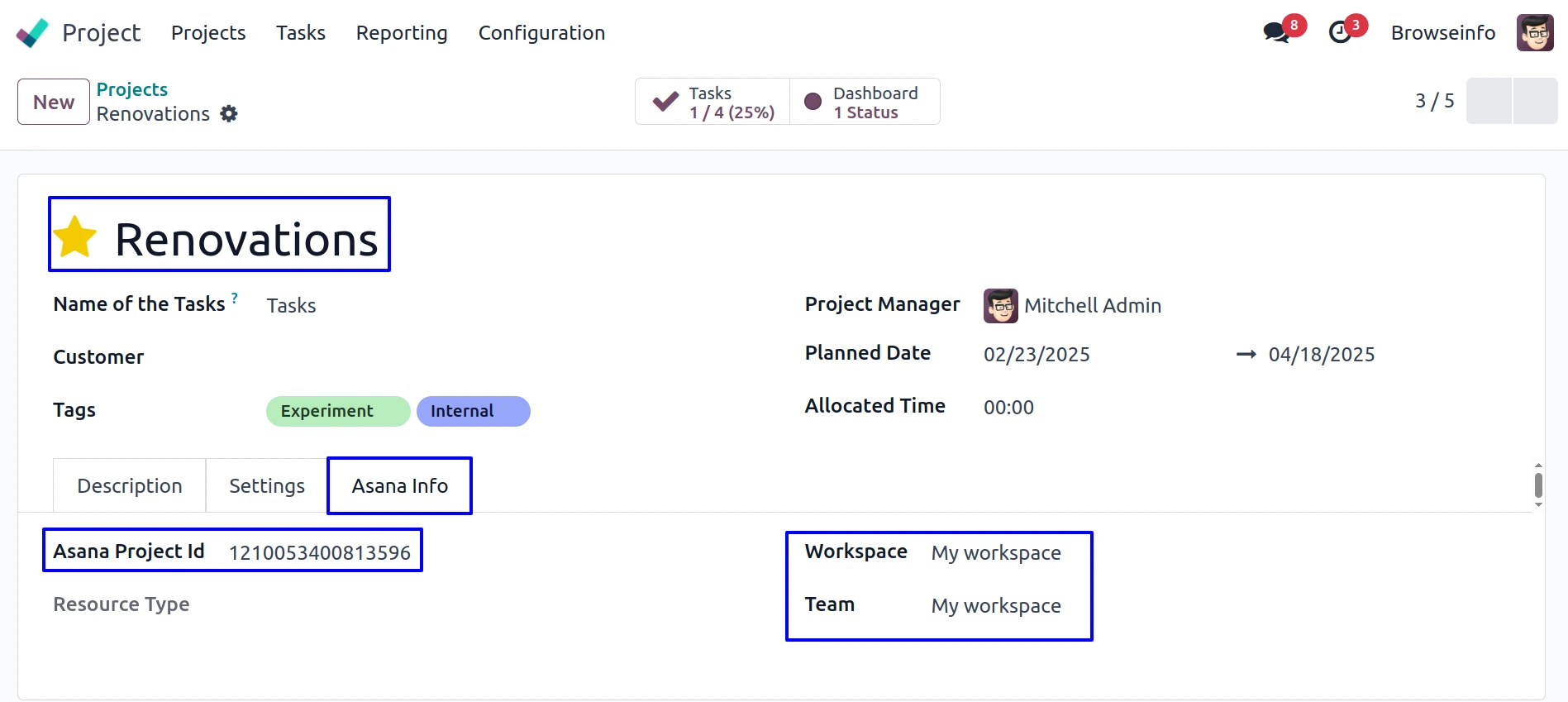
After successfully exporting the project in Asana, Project Id is generated.
Warning/Validation
If the Workspace and Team are not defined for the project, a validation error is displayed when the user attempts to export the project to Asana.

Asana Team
After successful authentication, users can view the Asana teams synchronized with Odoo, making it easier to manage team structures and project collaboration.

Asana Workspace
After successful authentication, users can view the Asana workspaces synchronized with Odoo, allowing accurate workspace mapping and integration between both platforms.
